How to create a leaderboard using Microsoft Excel
Step-by-step instructions for creating a leaderboard using Microsoft Excel. Includes screenshots and easy to follow instructions.
Article Contents
Excel isn't designed for leaderboards, but you can make it work. The result won't auto-sort or look particularly fancy, but if you already have Excel and just need something functional, here's how to set it up.
Prefer Google Sheets? You can connect your Google Sheet directly to create a live leaderboard without manual work.
This takes about 10-15 minutes. You'll need Excel 2016 or later.
The Basic Setup
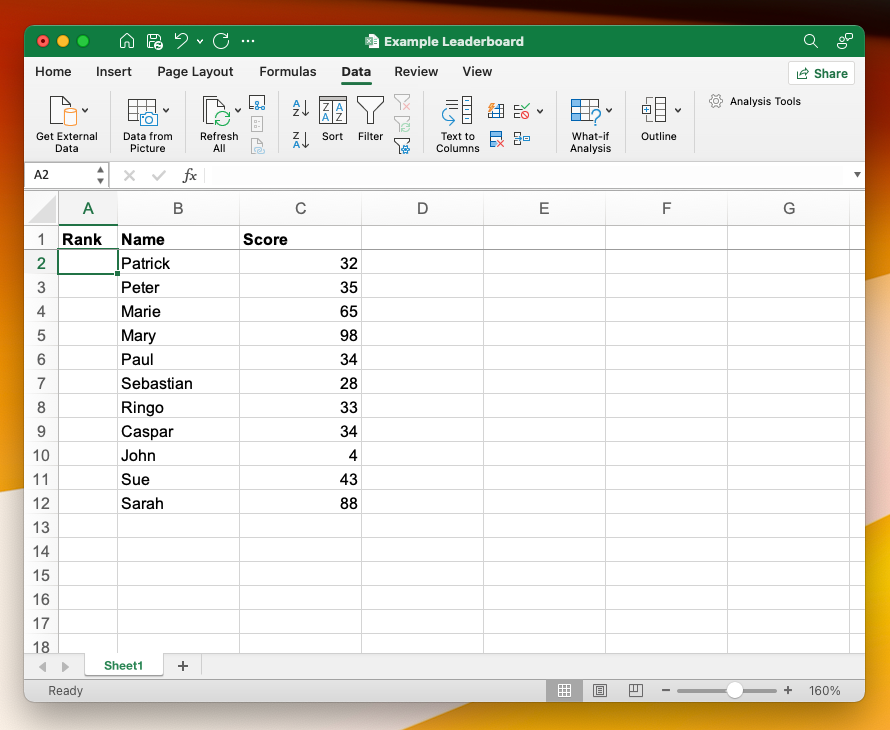
Create three columns:
- Column A: Rank
- Column B: Name
- Column C: Score
Put headers in row 1. Add your participant names and scores in rows 2 and down. Leave the rank column empty for now — we'll fill that with a formula.
Adding Automatic Rank Numbers
Here's a simple formula that gives you rank numbers: in cell A2, type =ROW()-1 and press Enter.

This returns the row number minus 1 (to account for the header). So row 2 shows "1", row 3 shows "2", and so on.
To copy this to all your rows:
- Click cell A2
- Grab the small square in the bottom-right corner of the cell
- Drag it down to your last participant

Sorting by Score
The ranking numbers only make sense once you've sorted by score. Here's how:
-
Select all your data including headers (click A1 and drag to the last cell with data)
-
Go to the Data tab and click "Sort"
-
Set it to sort by Score, largest to smallest
-
Click OK
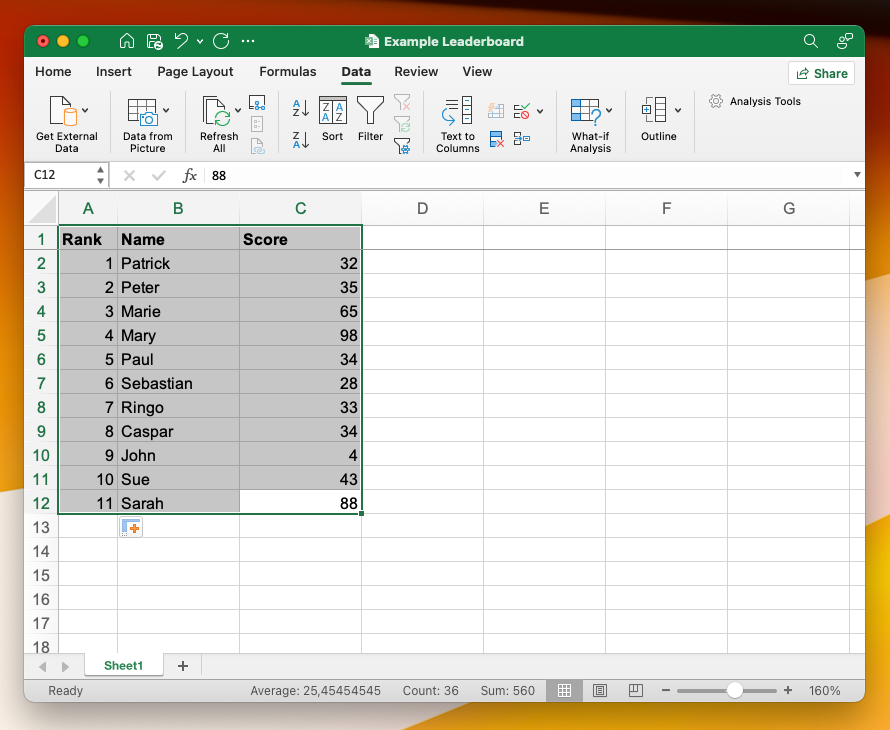

Your leaderboard is now ranked. The person with the highest score is at the top.
The catch: you'll need to re-sort manually every time scores change. Excel won't do this automatically.
Sharing It Online
If you want others to see your leaderboard without sending them the file:
-
Click the Share button in the top-right corner
-
Upload to OneDrive when prompted
-
Once uploaded, click Share again and choose "Anyone with the link can view"
-
Copy that link


Now people can view your leaderboard in a browser. If you want them to be able to edit scores, change the permission to "Can edit."
Skip the Setup: Download a Template
Don't want to build this yourself? Here's a pre-made template: Download Template

It's got the formulas already set up. Just delete the sample data and add your own.
If you'd rather skip spreadsheets entirely, our ready-made leaderboard templates give you a live, auto-sorting board you can customize and share in 60 seconds.
When Excel Isn't Enough
Excel works for basic tracking, but it has real limitations:
- No auto-sort. You have to manually re-sort after every score update.
- Clunky on mobile. Editing an Excel file on your phone is painful.
- No real-time updates. Even with OneDrive, viewers need to refresh to see changes.
- Styling is limited. Making it look professional takes significant effort.
If you need something that updates automatically, looks good on phones, and doesn't require everyone to have Excel, you can create an online leaderboard instead.
 A web-based leaderboard with themes and real-time updates
You can even import your existing Excel data directly if you've already been tracking scores in a spreadsheet.
Common Problems
Rank numbers don't update after sorting?
Make sure the formula uses relative references (like A2) not absolute ones (like $A$2). If you see dollar signs in the formula, delete them.
Can't find the Sort button?
Make sure you've selected your data first. Click anywhere in your data range, then try the Data tab again.
Sharing link doesn't work?
The file needs to finish uploading to OneDrive before you can share it. Look for the cloud icon with a checkmark to confirm it's done.
Excel gets the job done for simple leaderboards. For anything more complex — especially if multiple people need to update scores or view on mobile — you'll save yourself headaches with a purpose-built tool.

Written by Caspar von Wrede
Founder of Leaderboarded. Building tools that help teams track progress and stay motivated.


