How to create a leaderboard using Google Sheets
Step-by-step instructions for creating a leaderboard using Google Sheets, including screenshots. It's actually much easier than you think.
Article Contents
Overview
Already have data in Google Sheets? Skip the DIY approach and connect your spreadsheet directly to create a professional leaderboard in minutes.
Google Sheets is free, works in the browser, and you probably already have a Google account. That makes it a reasonable starting point for a quick leaderboard. It won't auto-sort or look particularly polished, but if you just need something functional in 10 minutes, here's how.
What You Need
- A Google account (free)
- A web browser
- Comfort with basic spreadsheet formulas
Step 1: Create the Basic Structure
Open a new Google Sheet and set up three columns:
- Column A: Rank
- Column B: Name
- Column C: Score
Put these headers in row 1. Add participant names in column B and their scores in column C. Leave column A empty — we'll fill that with a formula.

Step 2: Add Automatic Ranking
Click on cell A2 and type =row()-1, then press Enter.
The row() function returns the current row number. Subtracting 1 accounts for the header row, so row 2 displays "1", row 3 displays "2", and so on.
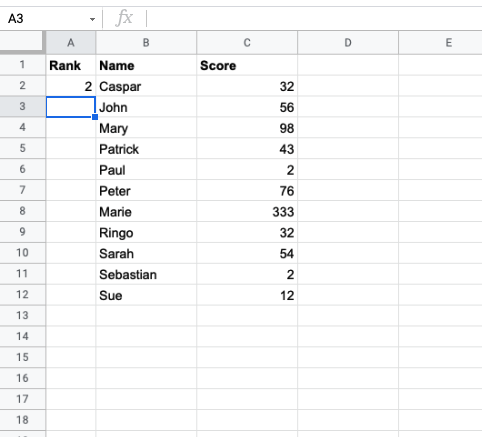
To copy the formula to all rows:
- Select cell A2
- Hover over the small square in the bottom-right corner
- Click and drag down to your last participant

Step 3: Enable Sorting
Two things to do here: freeze the header row and sort by score.
Freeze the Header Row
This prevents headers from getting mixed into the data when you sort:
- Click "View" in the menu bar
- Select "Freeze"
- Choose "1 row"

A thick gray line appears below row 1 — that means it worked.
Sort by Score
To show highest scores first:
- Click the triangle icon in the Score column header (column C)
- Select "Sort sheet Z→A" for descending order

Your leaderboard now shows participants ranked by score. The catch: you'll need to re-sort manually every time scores change.
Step 4: Share It
Google Sheets has built-in sharing. To create a read-only public link:
- Click the "Share" button (top-right corner)
- Click "Change to anyone with the link"
- Make sure "Viewer" is selected for permissions

Copy the link and send it out. Here's an example of what the final result looks like.
You can also grant "Editor" access to specific people if they need to update scores, or "Commenter" access if you want feedback without edits.
Alternative: Connect Google Sheets to Leaderboarded
If you want a polished leaderboard without the manual sorting and formula work, connect your Google Sheet directly to Leaderboarded. You get:
- Keep editing in Sheets: Update your familiar spreadsheet, then sync to your leaderboard
- Professional display: Transform rows into a beautiful, themed leaderboard
- One-click sync: Pull latest data from your sheet whenever you need
- Share anywhere: Get a link to share or embed on your website
- Professional themes and templates
- Advanced customization options

Tips If You Stick with Google Sheets
- Consider a dedicated tool — if you outgrow the spreadsheet approach, an online leaderboard maker handles sorting, sharing, and display automatically
- Data Validation — restrict score inputs to numbers only to prevent bad data
- Conditional Formatting — color-code the top 3 performers to make rankings pop
- Cell Protection — lock formula cells so nobody accidentally deletes them
- Test on Mobile — make sure it's readable on phones before sharing the link

Written by Caspar von Wrede
Founder of Leaderboarded. Building tools that help teams track progress and stay motivated.