Leaderboard Customization Guide
Customize your leaderboard's appearance with themes, colors, logos, and dynamic rank styles. Complete guide with examples.
Customize your leaderboard to match your brand or event. Here's how:


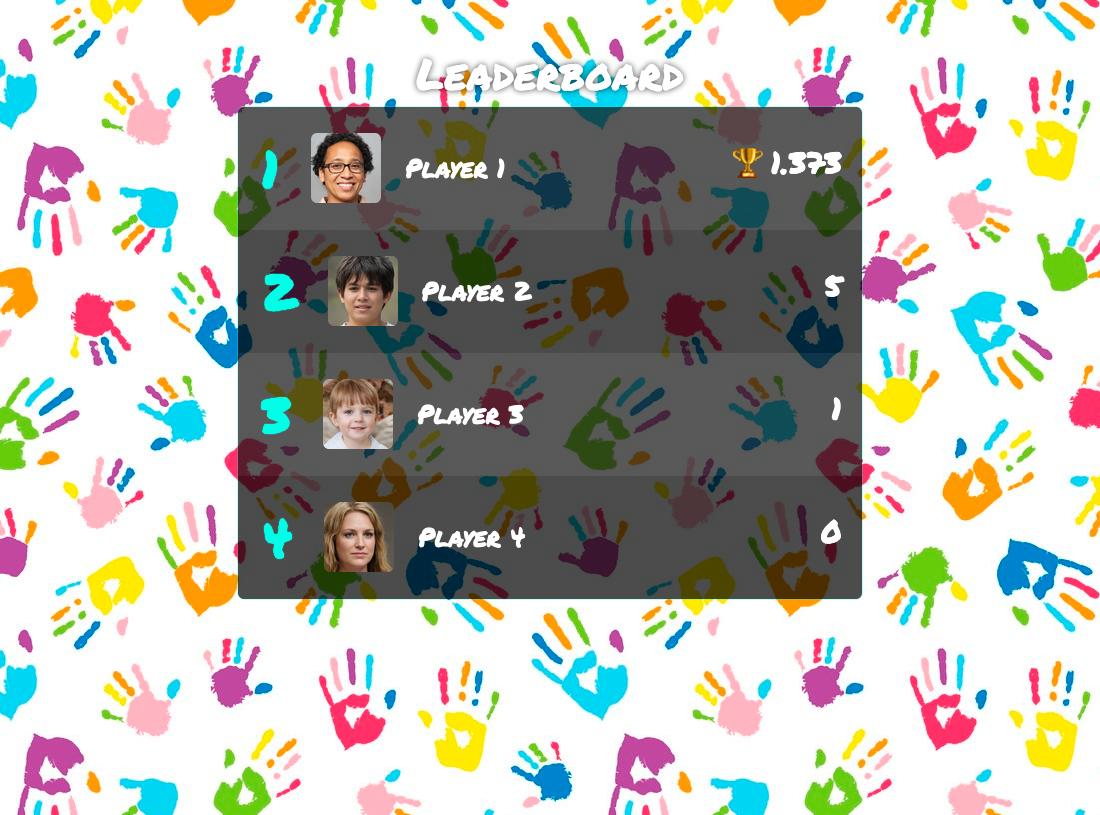

Step 1: Create Your Leaderboard
- Click the button above
- Choose the leaderboard type
- Enter your leaderboard details
- Click "CREATE LEADERBOARD"
Note: These customization options also work for scoresheets and goal trackers.
Step 2: Edit Title, Description, and Logo
Click the title area at the top of your board (or the dashed "Click to add a title, description, or logo" placeholder) to open the Title, Description & Logo dialog. Here you can:
- Title: Set a main heading for your board
- Description: Add rules, instructions, or context with rich text formatting (bold, italics, tables)
- Logo: Upload your brand logo and adjust its size (PRO feature)
Tip: If you've already added a title but haven't uploaded a logo yet, look for the "+ Add a logo" hint inside the title card.
Step 3: Customize Appearance and Settings
Click Appearance in the toolbar to customize your board's look, or Settings to configure behavior and scoring.

Both dialogs have tabs on the left. Changes preview instantly, but remember to click SAVE CHANGES.
Themes
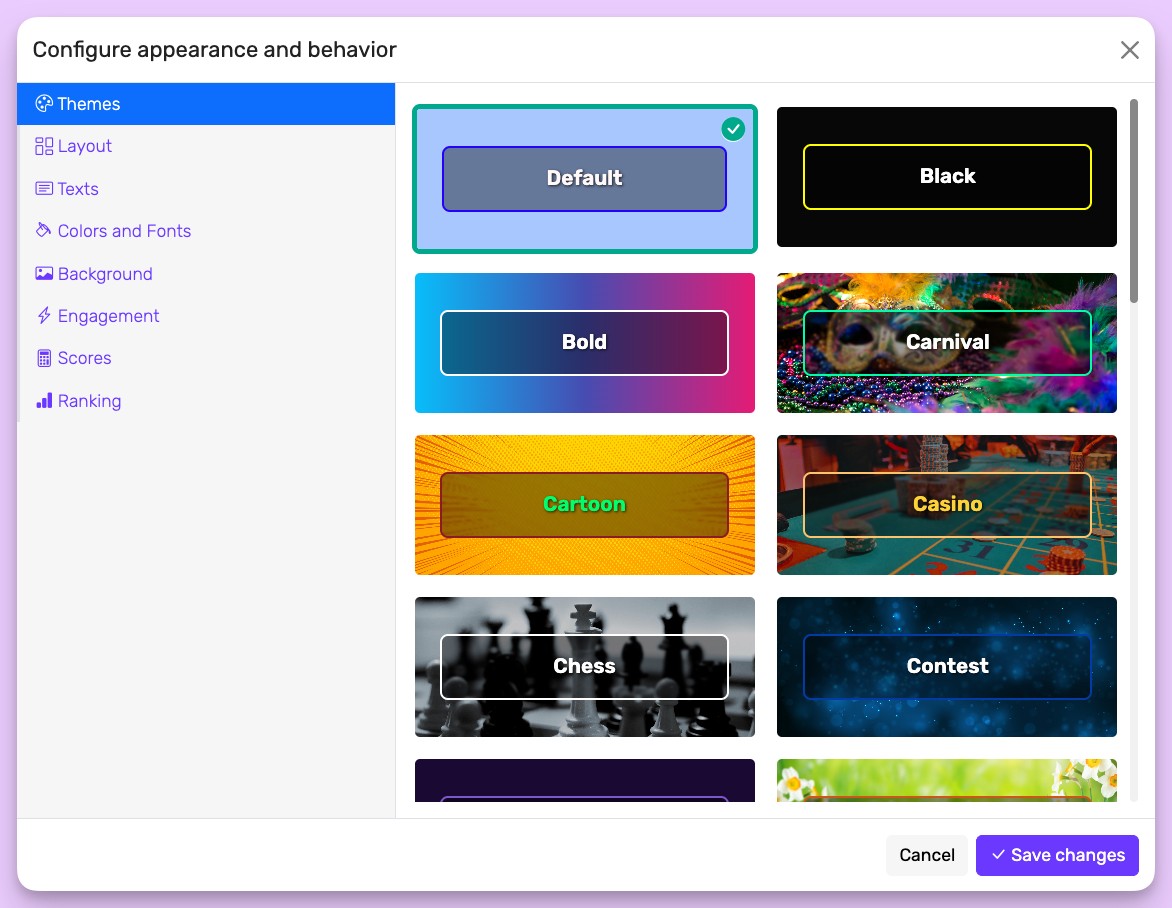
Quick customization options:
- Theme: Instantly change colors, fonts, and background with pre-designed themes
Layout
Choose from four layouts in the Appearance → Layout tab:
- List: The classic ranked leaderboard with participants in rows — the clean default for most boards.
- Bars: Shows each score as a horizontal bar, so it's easy to compare performance at a glance.
- Cards: Gives each participant their own card — great for photos and visual impact.
- Podium: Spotlights the top finishers on a winners' podium, ideal for results and celebrations.
You can also set the density — Compact, Comfortable, or Spacious — to control how much space each row takes up.
Colors and Fonts

Brand Alignment:
- Customize all colors to match your brand
- Choose from various font options
Dynamic Rank Styles:
Highlight top performers automatically:
- 🥇 Gold for 1st place
- 🥈 Silver for 2nd place
- 🥉 Bronze for 3rd place
- Or use custom emojis: 🌟 ⭐ 🏆 🔥
Setup: Rankings tab → Dynamic rank styles → ADD NEW RANK STYLE
Tip: Set individual participant colors by clicking their name on the leaderboard.
Background
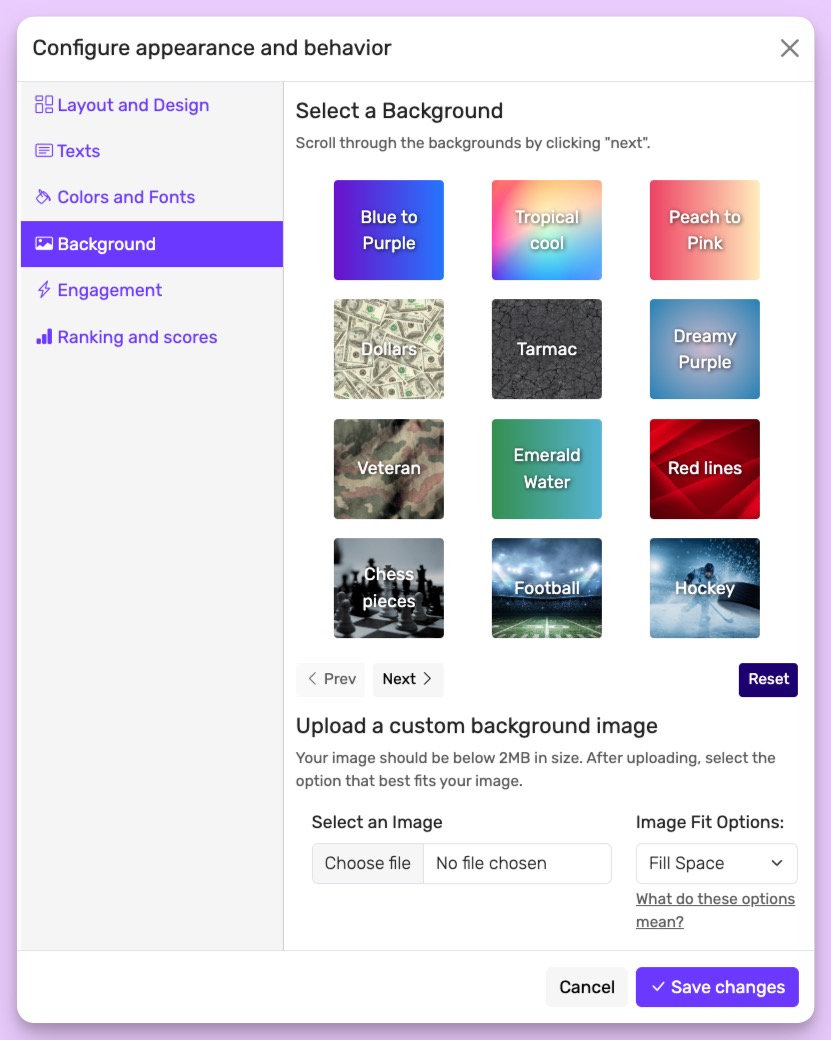
Options:
Gallery images or upload your own and choose fit option:
- Fill Space: Full coverage (may crop)
- Original Size: Actual dimensions
- Fit Entire: Show complete image
- Fit to Width: Full width, auto height
- Stretch: Fill container (may distort)
- Tile: Repeat pattern
Rankings and Scores
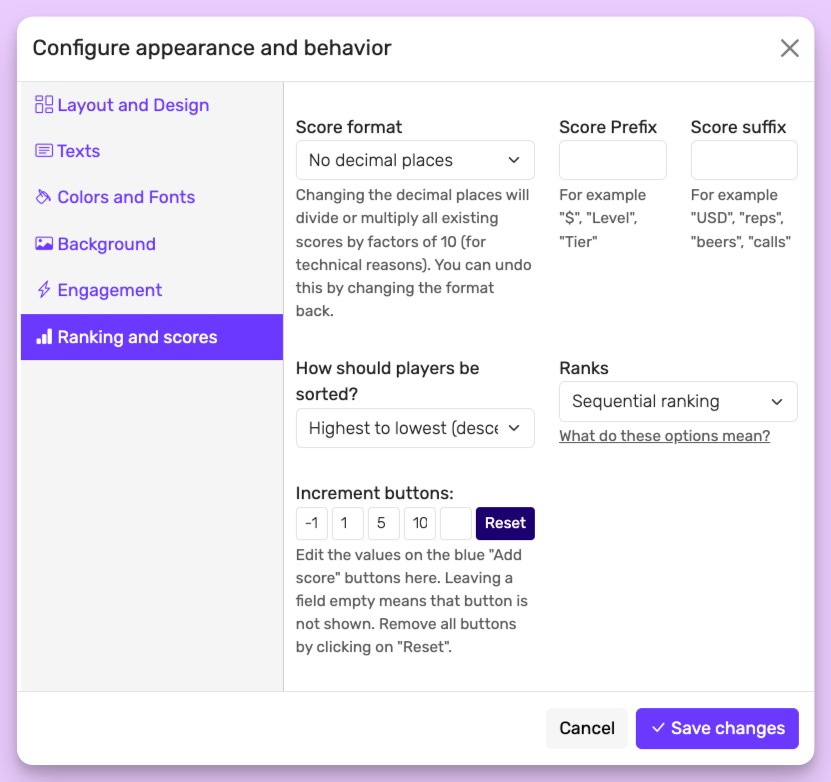
Score Format:
- Integer (default)
- Decimals (1 or 2 places)
- Time formats (HH:MM:SS or MM:SS.ms)
⚠️ Avoid changing format after entering scores
Score Display:
- Prefix/Suffix: Add units ("km", "points", "$")
- Sorting: Highest first, lowest first, or alphabetical
- Ranking: Tied ranks or sequential numbering
Score Buttons: - Customize button values - Hide with "RESET" if not needed
Engagement Features
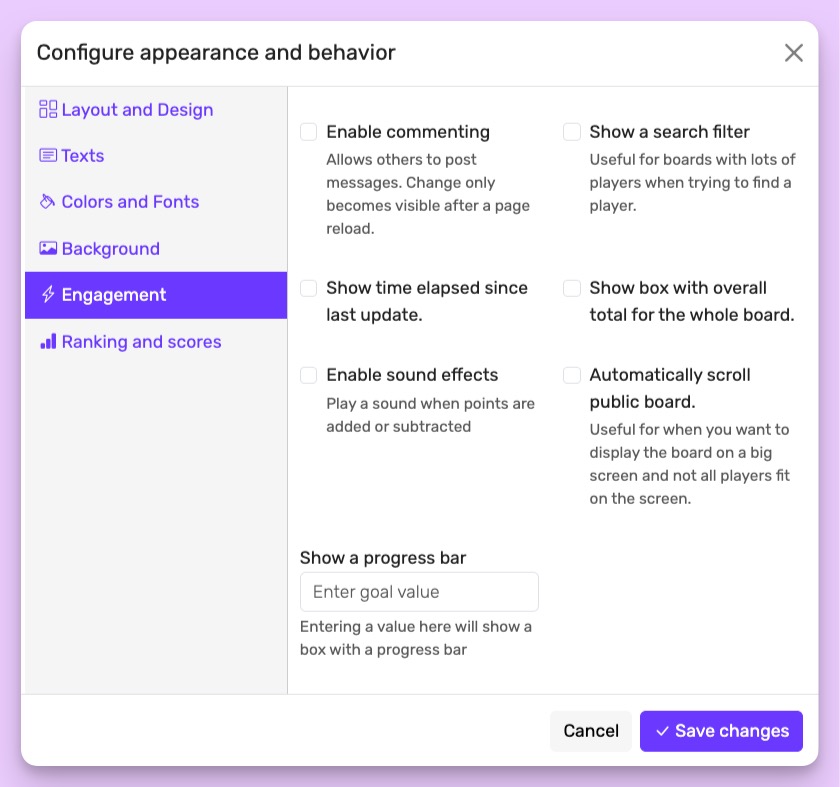
Enable commenting: Allows people to add comments (including GIFs and images) to the bottom of your leaderboard.
Show a search filter: When this is enabled, a box is displayed at the top of your board allowing people to search all the names on the board. This is useful when you have a large number of participants and people want to find out what their score or rank is.
Show time elapsed sind last update: This displays a text at the top of your board telling people when the last change was made to the board (e.g. "Last updated 28 minutes ago")
Show box with overall total for the whole board: When this is activated a total score for all participants on the leaderboard is shown at the top.
Show Progress bar: When you enter a value here, it will display a progress bar at the top of your board. The progress shown is the sum of all scores towards the value you entered here.
Automatically scroll public board: If you are showing your leaderboard in a public setting and not all names fit, then this option is for you: it scrolls all the way through the names and then restarts at the top.
Enable sound effects: When this is enabled, a "positive" sound will be played when points are added and a "negative" sound when points are deducted.