Exam timer: run test countdowns on the class screen
Run exam countdowns on the class screen with a free online exam timer. Scheduled starts, extra-time arrangements, and live sync across rooms and devices.
Article Contents
Exam morning. Thirty students, sealed papers, and the same question whispered every ten minutes: how long left? Every whispered answer is a small disruption, and every glance at a wall clock with no relation to the start time is a small calculation a stressed student shouldn't have to do.
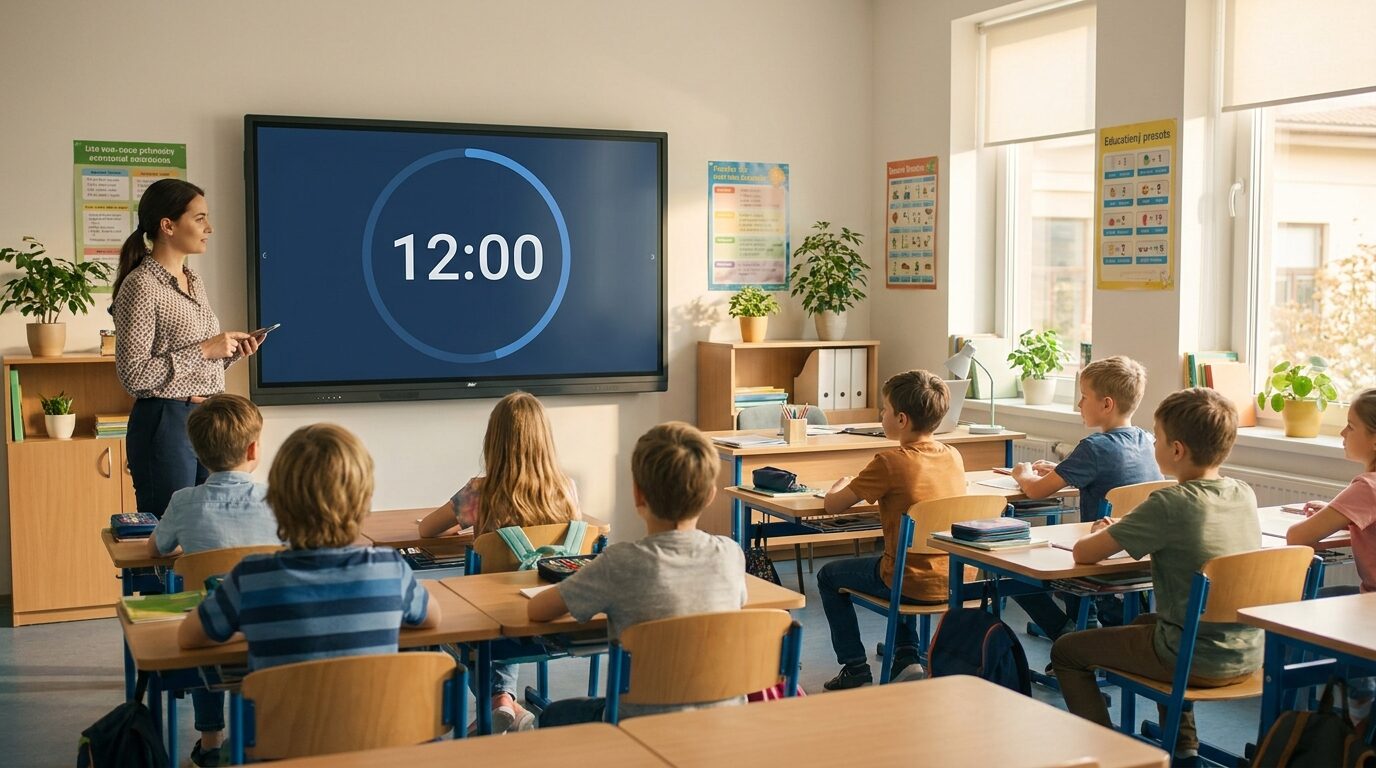
The fix costs nothing: a full-screen countdown on the class display, set to exactly the exam duration. No ambiguity, no mental arithmetic, no whispering.
 One number on the wall answers the question every student is silently asking.
Leaderboarded's exam timer is built for exactly this. It's a shared timer with one unusual property: the same link, opened on any screen, shows the same countdown at the same instant — synced to a server clock, accurate to the second. That one property turns out to solve most of the practical problems of exam timing.
The basic setup
Create a timer on the classroom timer page, set the duration, open its display link on the exam-room screen, and press full-screen. That's the whole setup — the display runs in any browser, so projectors, smartboards, and ageing classroom TVs all work, with nothing to install.
Your own phone or laptop is the control panel: open your timer there (you created it, so your view has the controls). Start the exam from the front of the room, pause it if there's a fire alarm, add five minutes if the start was delayed — the wall display follows instantly, and you never have to walk back to a desk.
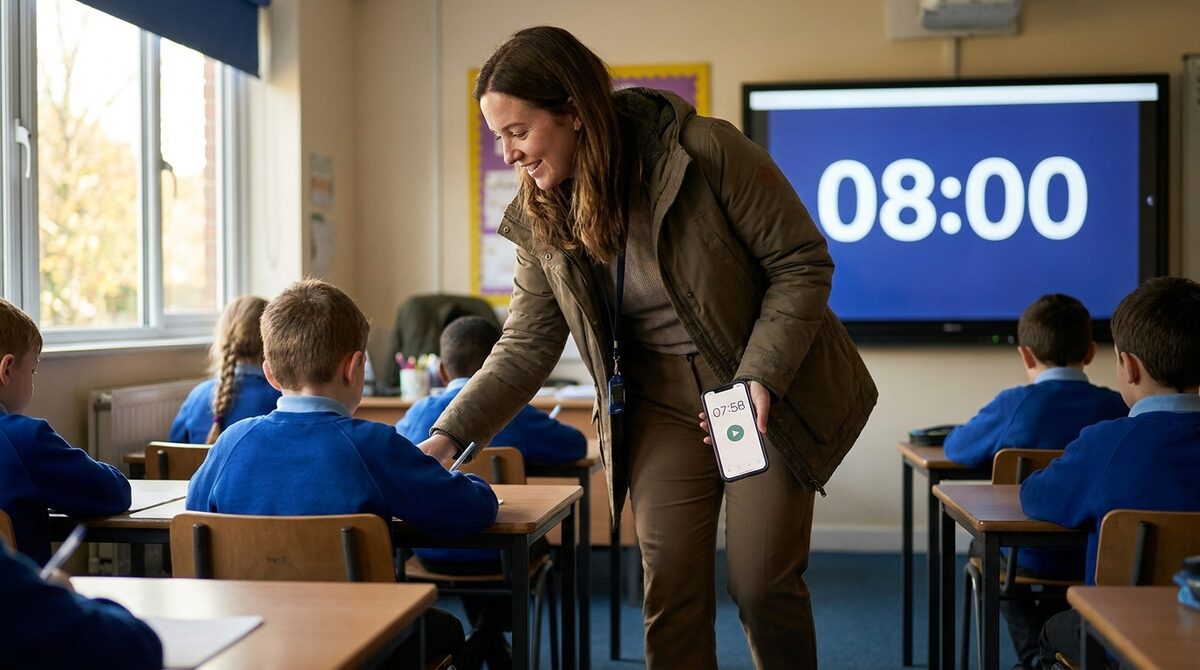 Start, pause, and adjust from your phone. The big screen follows.
Scheduled starts: "the paper begins at 09:30"
Exams rarely start when the room opens. Students file in, papers go out, instructions get read. Instead of starting a countdown manually at the right moment, set the timer to count down to a fixed time. Put "Paper begins at 09:30" on the board and the timer handles the run-up, then you start the exam clock proper when the room is ready.
The same trick works in reverse at the end: a custom end message — "Pens down. Remain seated." — appears when the countdown hits zero, with an optional buzzer. For exams I'd skip the buzzer and let the message do the work; a silent room doesn't need a siren.
Extra time and access arrangements
If some students have 25% extra time, run a second timer for them — a separate link with its own duration, displayed on a tablet at their desk or in their separate room. Because each timer is just a URL, "the main hall clock" and "the extra-time clock" can run side by side without special hardware.
This matters more than it sounds: exam regulators expect timing for access arrangements to be exact, not estimated. The JCQ instructions for conducting examinations — the rulebook for UK exam invigilation — require the start and finish times of every exam to be displayed where candidates can see them. A countdown does that better than a start time scribbled on a whiteboard.
Several rooms, one clock
The sync feature earns its keep the moment an exam spills into more than one room. Open the same display link on the screen in each room and every candidate sees the identical countdown — to the second. No more "Room 2 started ninety seconds late" disputes, and when an interruption hits either room, you pause from your phone and both rooms' displays show exactly what happened.
The timer is anchored to a fixed end time on the server rather than counting frames in the browser, so a screen that sleeps, a tab that gets backgrounded, or a Chromebook that drops Wi-Fi for a minute all come back showing the right number.
Why not just the wall clock?
A wall clock tells students the time. It doesn't tell them the time remaining — that's a subtraction exercise, repeated every few minutes, under stress. Test-anxiety research consistently finds that time pressure amplifies anxiety and hurts performance for a meaningful share of students; the American Test Anxieties Association puts test anxiety among the most common school-related anxieties. A visible countdown doesn't remove time pressure, but it removes the uncertainty about time, which is the part a teacher can actually control.
Phone timers fail for a different reason: most exam rules ban phones from desks entirely, and a timer on the invigilator's desk is invisible from the back row anyway.
Beyond exam day
The same timer covers the rest of assessment season:
- Mock exams and timed practice papers — same setup, lower stakes, and students learn to pace themselves before it counts. Pair with a study timer routine for revision sessions.
- Class tests and quizzes — a 20-minute countdown keeps a quiz from eating the whole lesson. If you make quizzes a regular feature, a maths quiz with a leaderboard adds the competitive layer.
- Timed essays and exam-technique lessons — count up instead, and show students how long each section actually took them.
For everyday (non-exam) classroom timing — stations, brain breaks, cleanup — see the broader guide to classroom timers.
Set one up before the next test
The timer is free: only the teacher needs an account, and anyone with the link — including the screen at the front of a second exam hall — can display it without signing in. Durations go up to 100 hours, which covers even the most generous extra-time arrangement.

Written by Caspar von Wrede
Founder of Leaderboarded. Building tools that help teams track progress and stay motivated.