How to Add a Donation Goal to Your OBS Live Stream
Learn how to set up a donation goal on your OBS live stream with our step-by-step guide. Ideal for charity events, fundraisers, and content creators.
Article Contents
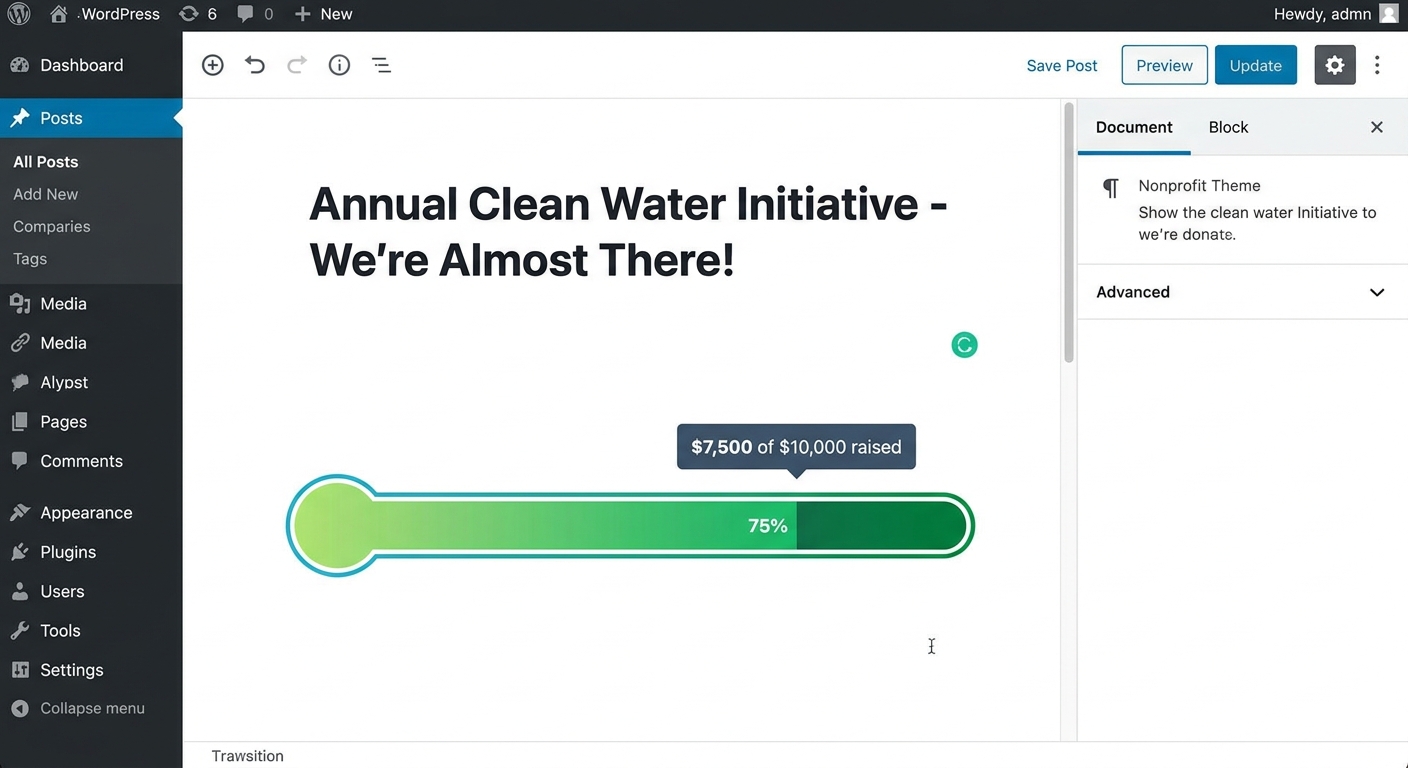
A donation goal on your live stream shows viewers exactly how close you are to hitting your fundraising target. It creates urgency and gives people a reason to contribute — they can see the bar move in real time.
This guide walks through adding a donation tracker to OBS using Leaderboarded.com. The same process works with vMix, Streamlabs, XSplit, and any other streaming software that supports browser sources.

You'll need OBS installed. If you don't have it yet, grab it from obsproject.com and run through the quickstart guide to get familiar with the basics.
How It Works
Three steps:
- Create a donation goal tracker on Leaderboarded.com
- Copy the overlay URL
- Add it to OBS as a browser source
The tracker is browser-based — no software to install. You can control it from any device, including your phone, and you can run multiple goal trackers on the same display.
Step 1: Create Your Donation Goal Tracker
- Go to the fundraiser goal tracker page
- Click "START HERE" at the top
You'll see the admin view:

Enter your Current Value and Goal Value, then click APPLY. Give the tracker a name so you can identify it. If you want to show multiple goals at once, click "ADD GOAL TRACKER."
Any changes you make here update instantly on the stream overlay — no need to restart anything.
To customize the look, click Appearance and go to the Colors tab. The DEFAULT theme with a semi-transparent background usually looks best on stream. You can also switch the progress bar to vertical orientation under the Layout tab if that fits your scene better.
Step 2: Get the Overlay URL
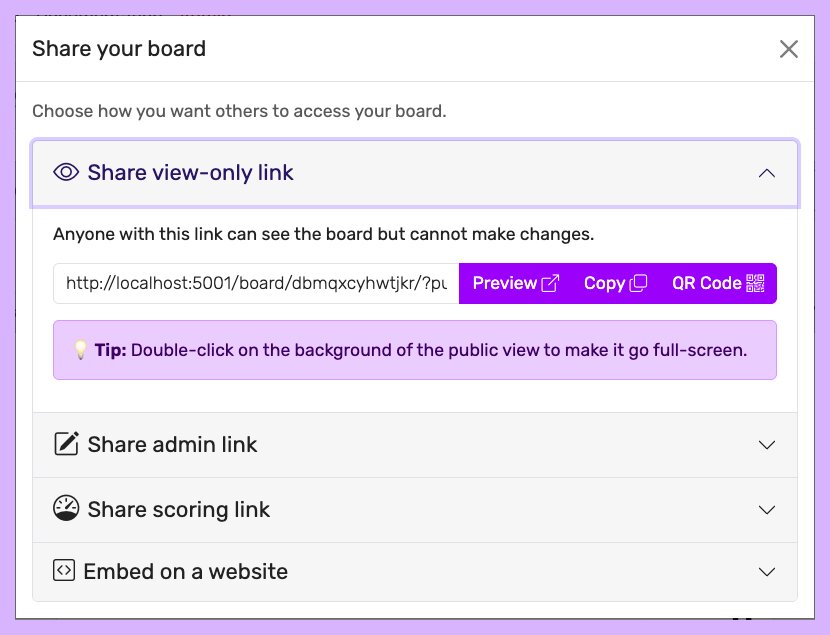
Click Share in the toolbar, then expand Share presentation link:
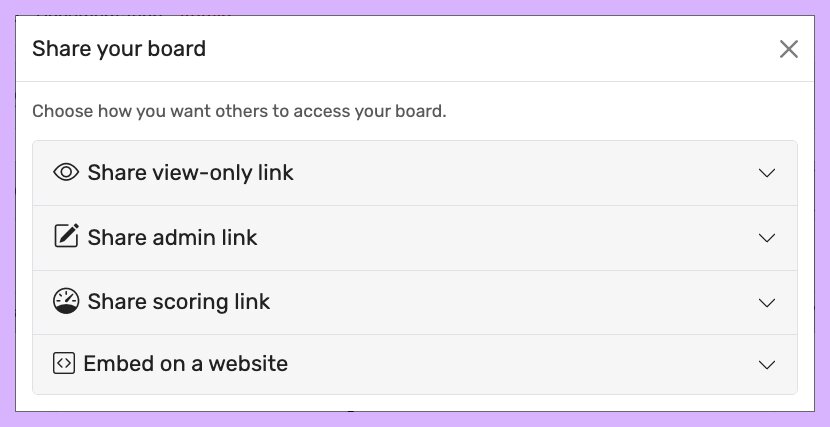
Copy the URL — that's what you'll paste into OBS.
Step 3: Add to OBS
In the Sources panel, click + and select Browser.

Click OK on the default settings:
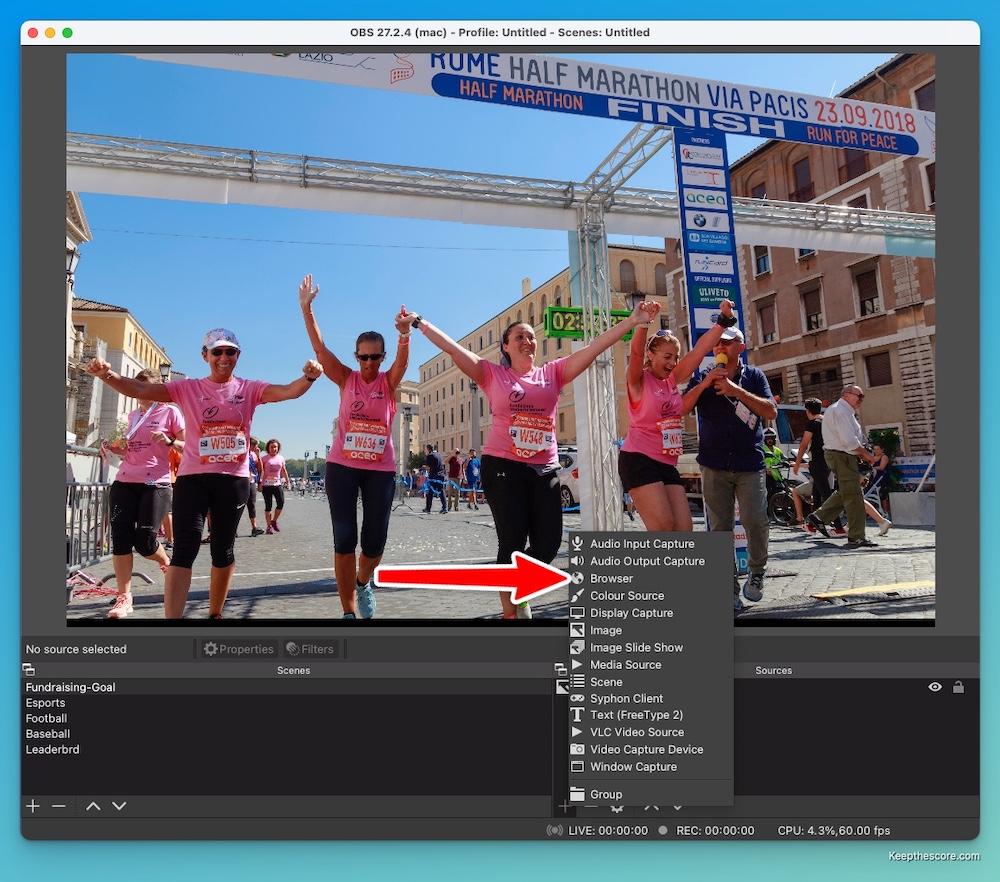
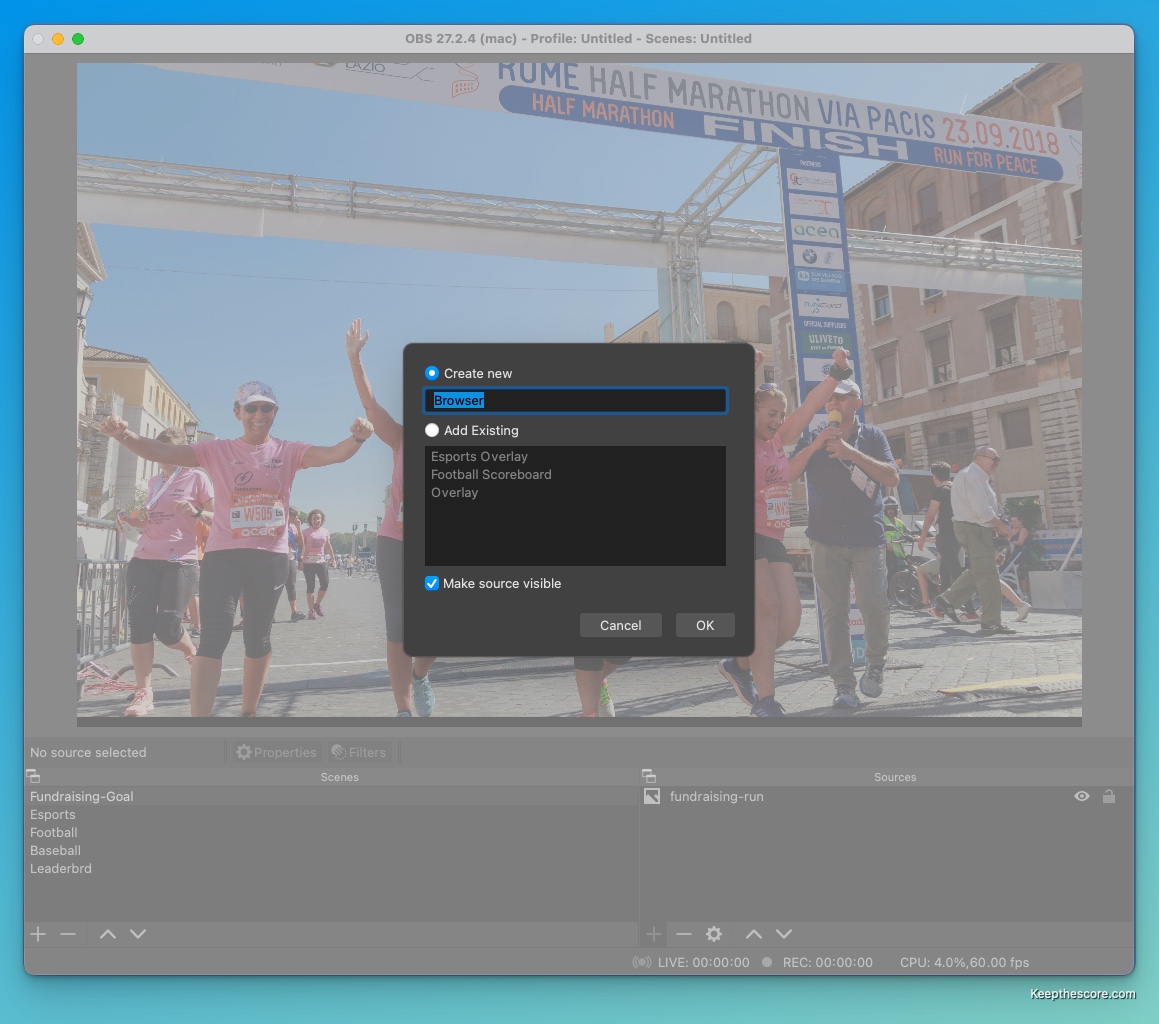
Paste your overlay URL into the URL field. Set width to 1200 and height to 1000:

Click OK. Your donation tracker appears in the preview:
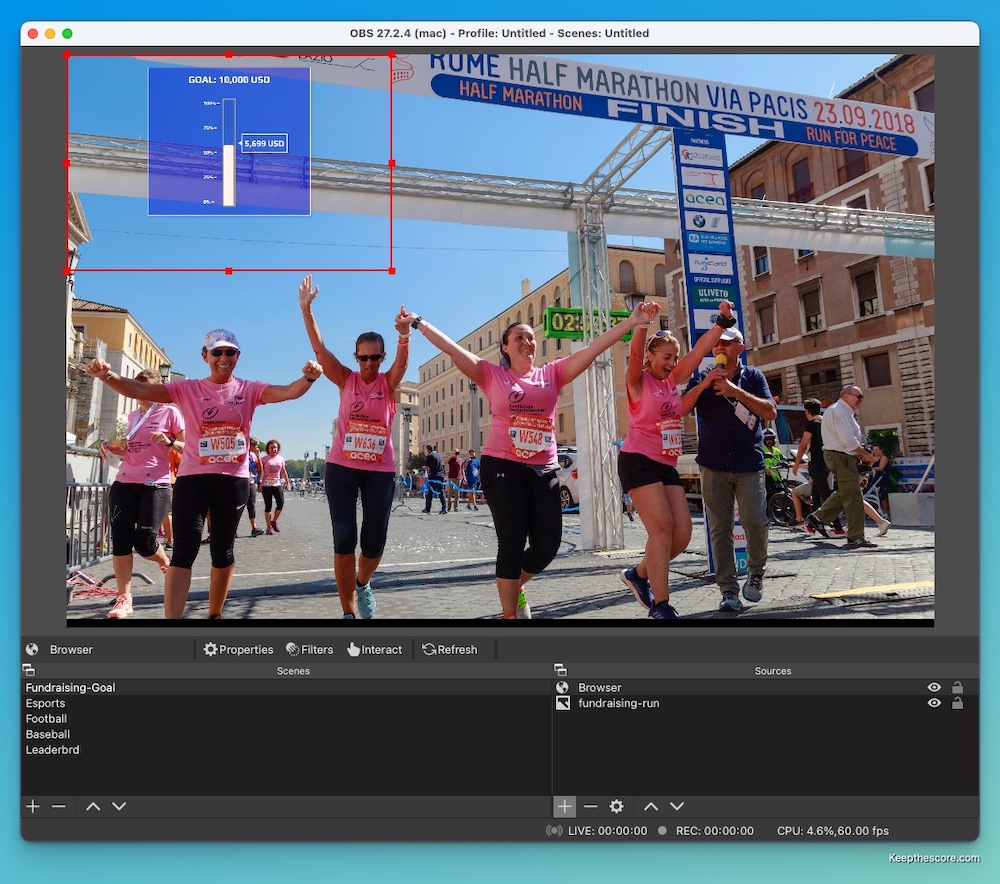
Drag the red handles to resize and position it. You're ready to go:

All updates happen through Leaderboarded.com. Change a value there and it shows up on stream instantly — no scene refreshes or restarts needed. Share the admin URL with team members so they can update the tracker from wherever they are.
Need a leaderboard instead of a progress bar? Check out how to add a leaderboard to your OBS stream.

Written by Caspar von Wrede
Founder of Leaderboarded. Building tools that help teams track progress and stay motivated.