WordPress Donation Counter: Add a Live Tracker to Your Site
Embed a live donation counter on your WordPress site using a free plugin. Real-time fundraising thermometer for nonprofits, churches, and schools.
Article Contents
Your donors want to see the thermometer move. A live donation counter on your WordPress site shows real-time progress toward your fundraising goal — and that visibility is what turns a quiet campaign into one that builds momentum.
This guide covers how to embed a live donation counter or fundraising thermometer on any WordPress site using Leaderboarded's free plugin. The whole process takes about five minutes.
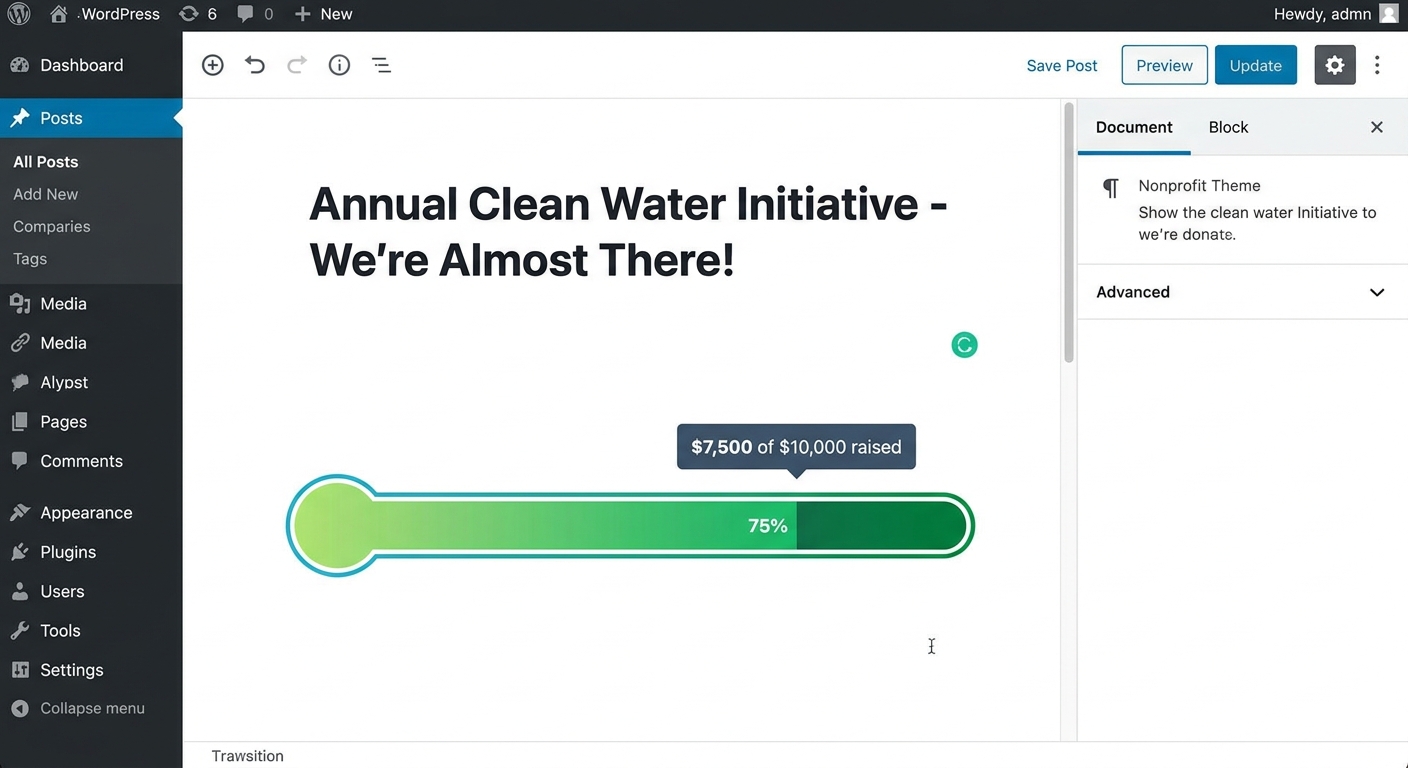
Who This Is For
If you manage a WordPress site for a nonprofit, church, school, or community organization and want to show live fundraising progress — this is the guide. You don't need coding skills or a developer. If you can install a WordPress plugin and paste a shortcode, you're set.
How It Works
The donation counter lives on Leaderboarded.com. You create a goal tracker there, then embed it on your WordPress site using our plugin. When you update the donation total (from any device, including your phone), the counter on your WordPress page updates automatically. No page edits, no re-uploading images, no manual HTML changes.
Three steps:
- Install the Leaderboarded WordPress plugin
- Create a donation goal tracker and grab the shortcode
- Paste the shortcode into your WordPress post or page
That's it. Your donation counter is live.
Step 1: Install the WordPress Plugin
You only need to do this once. After that, you can embed as many trackers on as many pages as you like.
- Log into your WordPress admin dashboard
- Go to Plugins > Add New
- Search for "leaderboarded"
- Click Install Now, then Activate
You can also download the plugin from the official WordPress plugin directory and upload it manually.
For detailed installation instructions, see our WordPress plugin documentation.
The plugin is free to install. Embedding a board on your site requires a paid plan.
Step 2: Create Your Donation Goal Tracker
Click the button above to create a goal tracker. Set your fundraising target (say, "$10,000 for the new roof") and your current total. Give it a name so you can find it later.
 A live donation counter from Leaderboarded.com — updates in real-time as you record donations
Customize the look under Appearance: pick colors that match your site, choose between horizontal and vertical orientation, and set a semi-transparent background if you want the tracker to blend with your page design. For more styling options, check the customization guide.
Once your tracker looks right, click Share in the toolbar, expand the Embed on a website section, and click Copy to Clipboard. Your shortcode looks like this:
[leaderboarded token="rvfafgignlr"]
Step 3: Add the Shortcode to Your WordPress Page
Open the post or page where you want the donation counter to appear. In the block editor (Gutenberg):
- Start a new paragraph and type
/ - Select Shortcode from the list
- Paste the shortcode from step 2
- Save or publish your page
Your live donation counter is now embedded and updating in real-time.
Updating Donations
Here's the part that makes this different from a static image: you update the donation total on Leaderboarded.com, and it changes on your WordPress site instantly. No need to edit the page, re-upload an image, or touch any code.
You can update from your phone, your laptop, or any device with a browser. Multiple people can update the same tracker — hand the admin link to your treasurer and they can record donations as they come in.
Use the Scorekeeping Link for Helpers
If you have volunteers recording donations, you don't need to give them full admin access. Share the scorekeeping link instead — it lets them update the donation total using large, easy-to-tap buttons but locks them out of settings. No account required, works on any phone.
Find the scorekeeping link in the Share dialog. For more on access levels, see how to share and control board access.

What You Can Track
The goal tracker isn't limited to simple donation totals. Here are some ways organizations use it:
- Single fundraising goal — classic thermometer showing progress toward one target ($10,000 for the building fund)
- Multiple goals on one page — add separate trackers for different campaigns (roof fund, scholarship fund, mission trip) on the same WordPress page
- Pledge drives — track pledged amounts during a live event and update the counter as pledges come in
- Matching campaigns — show both donated and matched amounts to demonstrate the impact of corporate matching
Why a Live Counter Beats a Static Image
Most WordPress donation counter tutorials tell you to upload a thermometer PNG and swap it out manually every time you get a donation. That works for about two days before you stop updating it.
A live counter stays current because the update happens outside WordPress. Record a donation on your phone between meetings and it shows up on your website immediately. That consistency is what keeps donors engaged — a stale thermometer at 40% for three weeks actually discourages people.
The psychology behind fundraising thermometers is straightforward: visible progress creates urgency. But only if the progress is actually visible — which means the counter needs to be current.
Beyond Your Website
The same donation tracker you embed on WordPress works anywhere else too:
- Livestreams — add it as a browser source in OBS for charity streams
- Event displays — show it on a TV or projector at your fundraiser
- Email updates — take a screenshot for your campaign emails
- Custom integrations — build a pledge counter with custom JavaScript for interactive buttons on your site
Getting Started
Create your donation goal tracker above, install the WordPress plugin, and paste the shortcode into your page. The plugin is free — you'll need a paid plan to embed. Live in five minutes.

Written by Caspar von Wrede
Founder of Leaderboarded. Building tools that help teams track progress and stay motivated.


