How to add a live leaderboard to your OBS stream
Stream live events with OBS and add a real-time, customizable leaderboard overlay. Free, easy setup, mobile-friendly score management.
Article Contents

If you're streaming a competition — a gaming tournament, a trivia night, a sales contest — viewers want to see the standings. A live leaderboard that updates in real-time keeps people watching.
Here's how to add one to OBS in about 5 minutes.
What You'll Need
- OBS Studio (free from obsproject.com)
- A leaderboard from Leaderboarded.com
- About 5 minutes
The leaderboard runs in a browser, so there's nothing to install beyond OBS itself. You can update scores from your phone while the stream is running.
Create Your Leaderboard
Click the button above to set up your leaderboard. Add your participants, pick a theme that matches your stream, and you're ready to go.
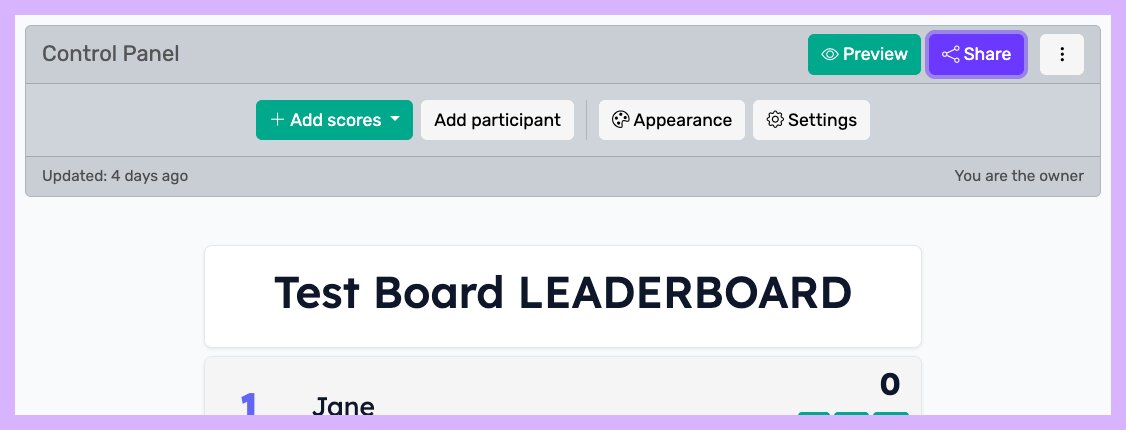 Your admin panel — this is where you'll update scores
You can share this admin panel with a co-host or dedicated scorekeeper. They can update rankings from their phone while you focus on the broadcast.
Try making your background semi-transparent. When editing colors, use the right-most slider to set transparency. This lets your stream content show through.
For detailed styling options, check out the customization guide.
Get Your Overlay URL
Click Share in the toolbar:
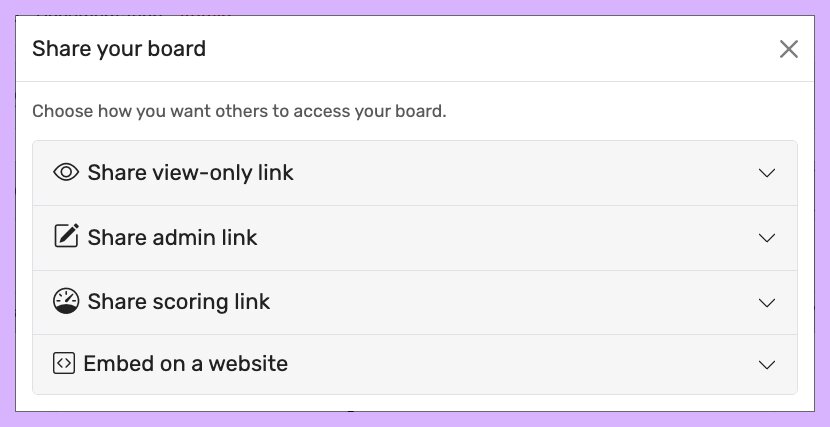
Then select Share presentation link:
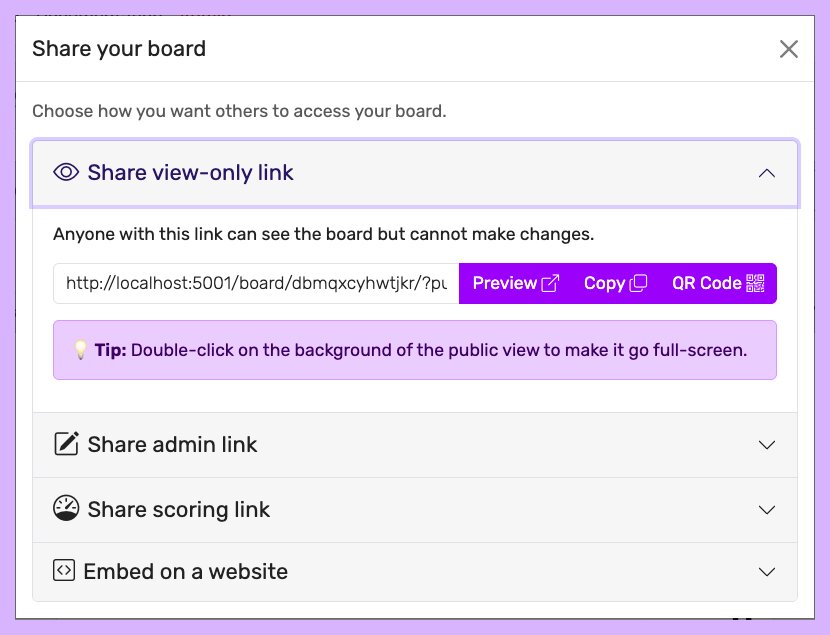
Copy that URL. You'll paste it into OBS in the next step.
Add It to OBS
In OBS, find the Sources panel at the bottom. Click the "+" button and select "Browser":
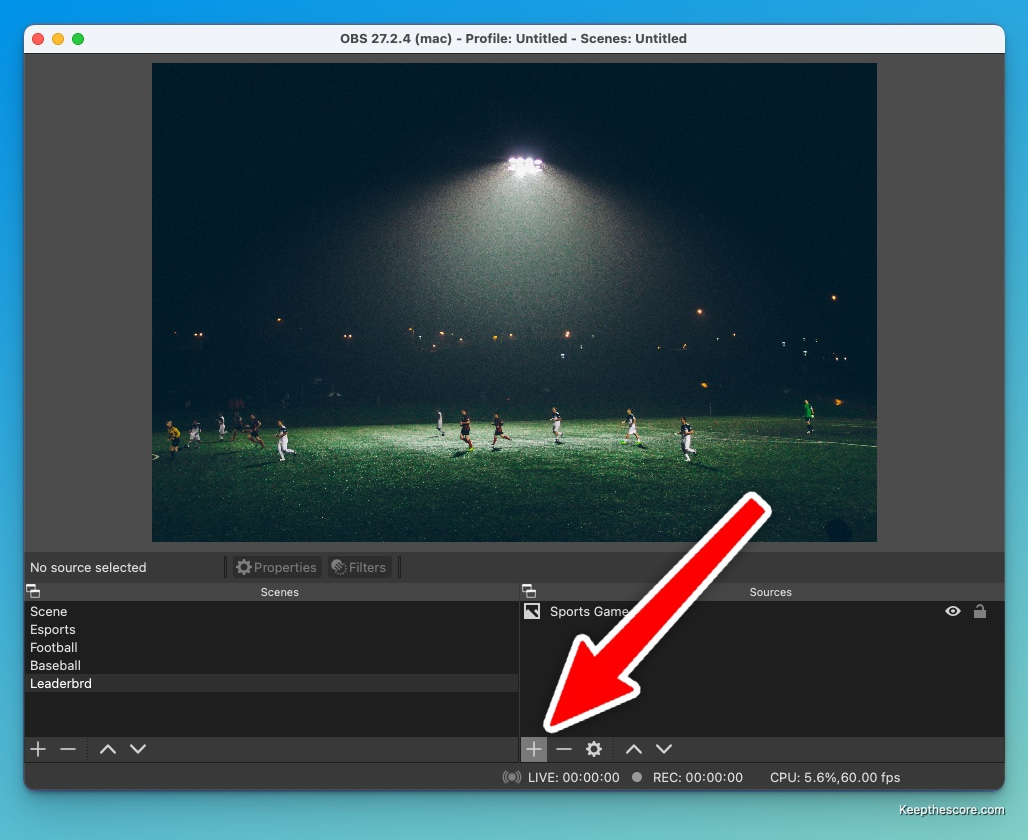

Give it a name (something like "Leaderboard") and click OK:

In the properties window, paste your URL and set the dimensions. 1200 x 1000 works as a starting point — you can resize it in the preview later:

Click OK. Your leaderboard appears in the preview:

Drag the corners to resize and reposition it where you want it in your scene:
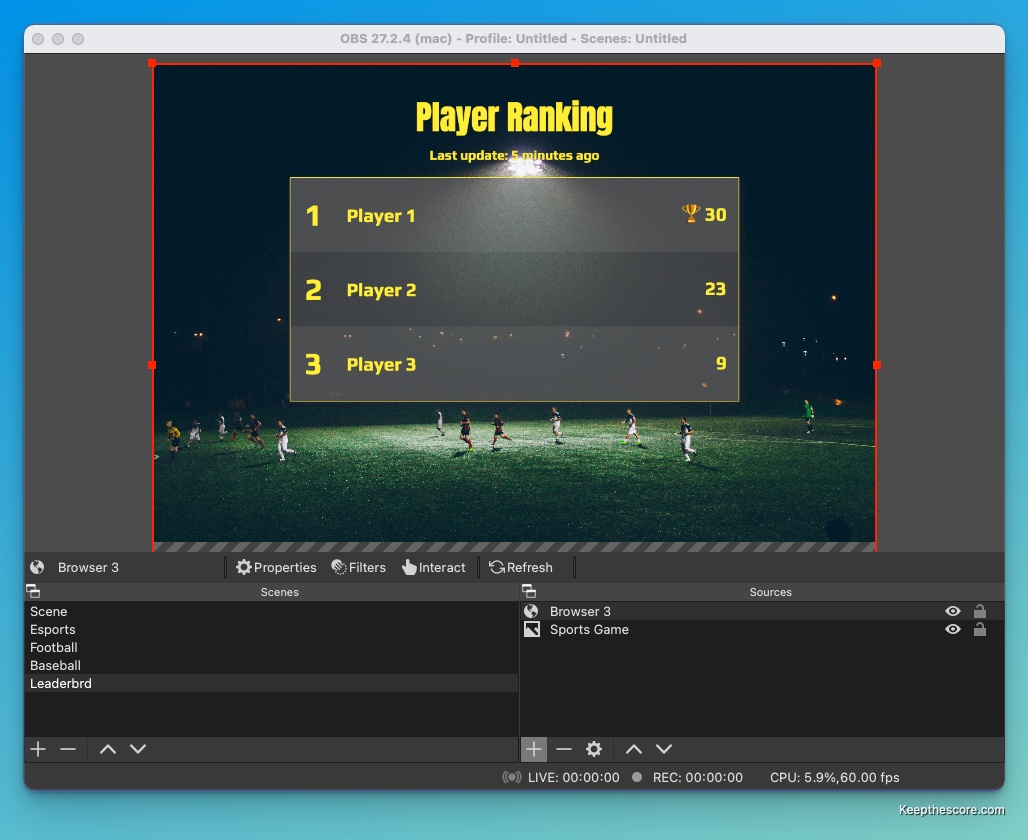
That's it. You're set up.
Updating Scores During Your Stream
Here's the nice part: you don't need to touch OBS once the leaderboard is added. All updates happen through the admin panel.
Change a score on your phone or laptop, and viewers see it update instantly on the stream. No restart, no refresh, no scene switching.
This works from anywhere with internet access. Your scorekeeper can be across the room or across the country.
A Few Tips
Test before you go live. Make sure the leaderboard appears correctly and updates are showing up. Browser sources sometimes cache — if you make changes and don't see them, right-click the source in OBS and select "Refresh cache."
Position matters. Put the leaderboard somewhere visible but not blocking important action. Corner placement works well. Don't make it so big that it dominates the screen.
Consider transparency. A semi-transparent background lets your stream content show through, making the leaderboard feel more integrated rather than just stuck on top.
Share the admin panel. If you're juggling streaming duties, have someone else handle score updates. Give them the admin link and let them work from their device.
The whole system is browser-based, so there's nothing to install and no accounts required for your scorekeeper to help out. Just send them the link.

Written by Caspar von Wrede
Founder of Leaderboarded. Building tools that help teams track progress and stay motivated.