How to Set Up a Live CTF Leaderboard for Your Competition
Set up a live CTF leaderboard that tracks points, time, and challenges completed. Used by university CTF competitions, cybersecurity bootcamps, and hackathons.
Article Contents
Capture The Flag competitions need a leaderboard that does more than show a list of names. CTF organizers track points, time-to-solve, and challenges completed — often across dozens of teams competing simultaneously. And when the scores update in real time on a big screen at the front of the room, the energy changes completely.
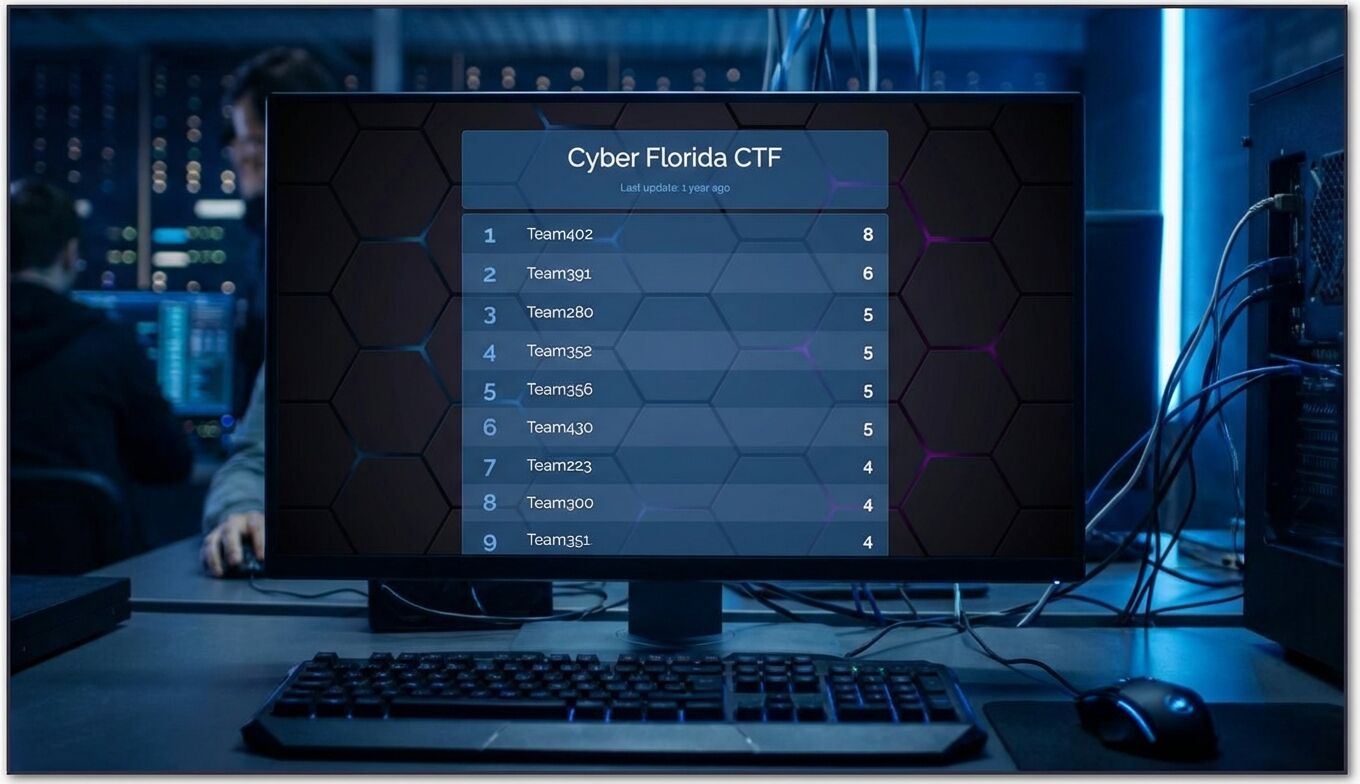
This guide covers how to set up a live CTF leaderboard using Leaderboarded.com, with examples from real competitions that have used the platform — from community college CTFs to national cybersecurity hackathons.
Why CTF Competitions Need a Dedicated Leaderboard
Most CTF platforms (CTFd, PicoCTF, Hack The Box) have built-in scoreboards, but they come with limitations that matter during a live event:
- No big-screen display mode. The built-in scoreboard is designed for a browser tab, not a projector or TV wall.
- Limited customization. You can't add your event branding, adjust the layout, or filter what's visible.
- No visual ranking. Standard CTF scoreboards show a plain list. A dedicated leaderboard adds bar charts, medals, and animations that make the competition feel real.
- No embeddable view. If you need the leaderboard on a website, in a stream overlay, or on multiple screens around a venue, you're stuck.
A dedicated leaderboard solves all of these. It pulls data from your CTF platform (via API or manual entry) and displays it in a format designed for audiences, not just participants.
What a CTF Leaderboard Looks Like in Practice
Here are real CTF leaderboards built by competition organizers on Leaderboarded.com:
Cyber Florida CTF
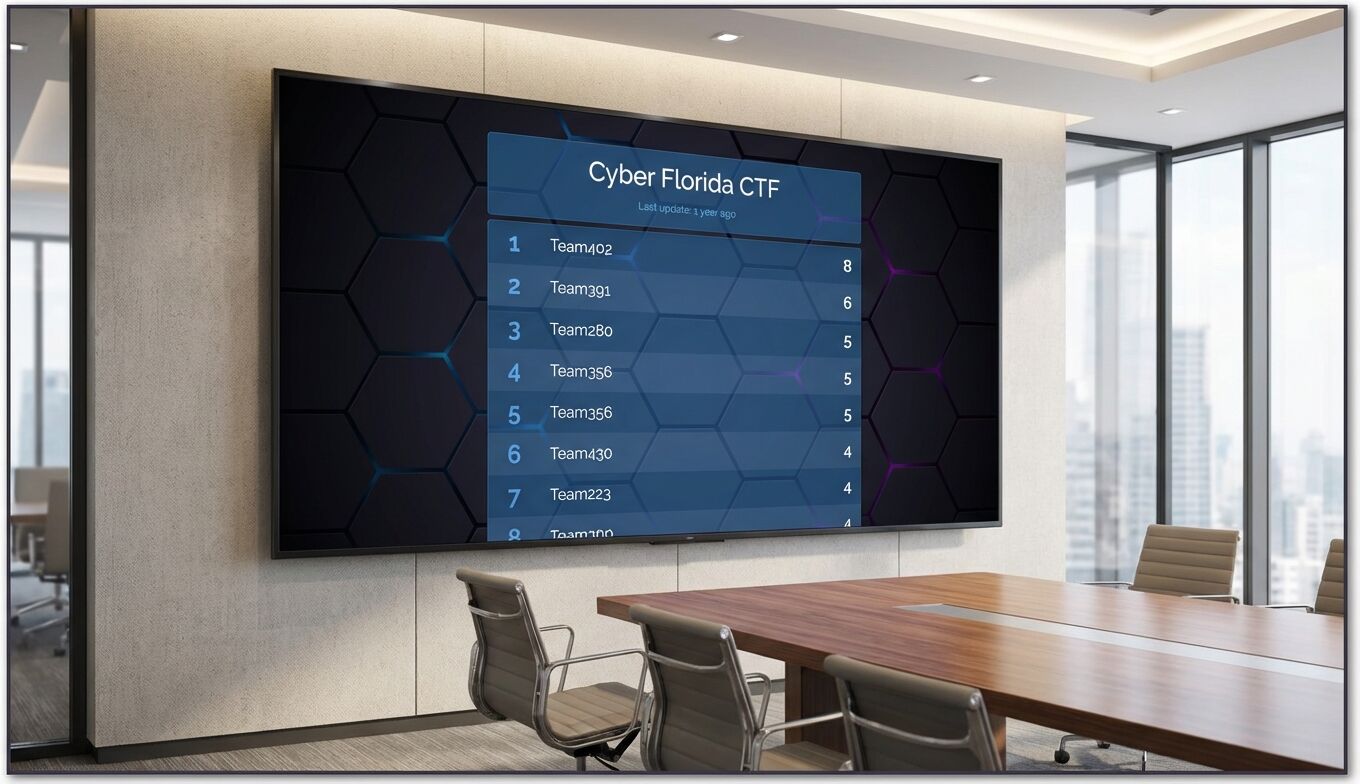
A state-level CTF with 500+ participants. The compact table layout shows rank, team name, and score — clean and readable on projectors and large screens.
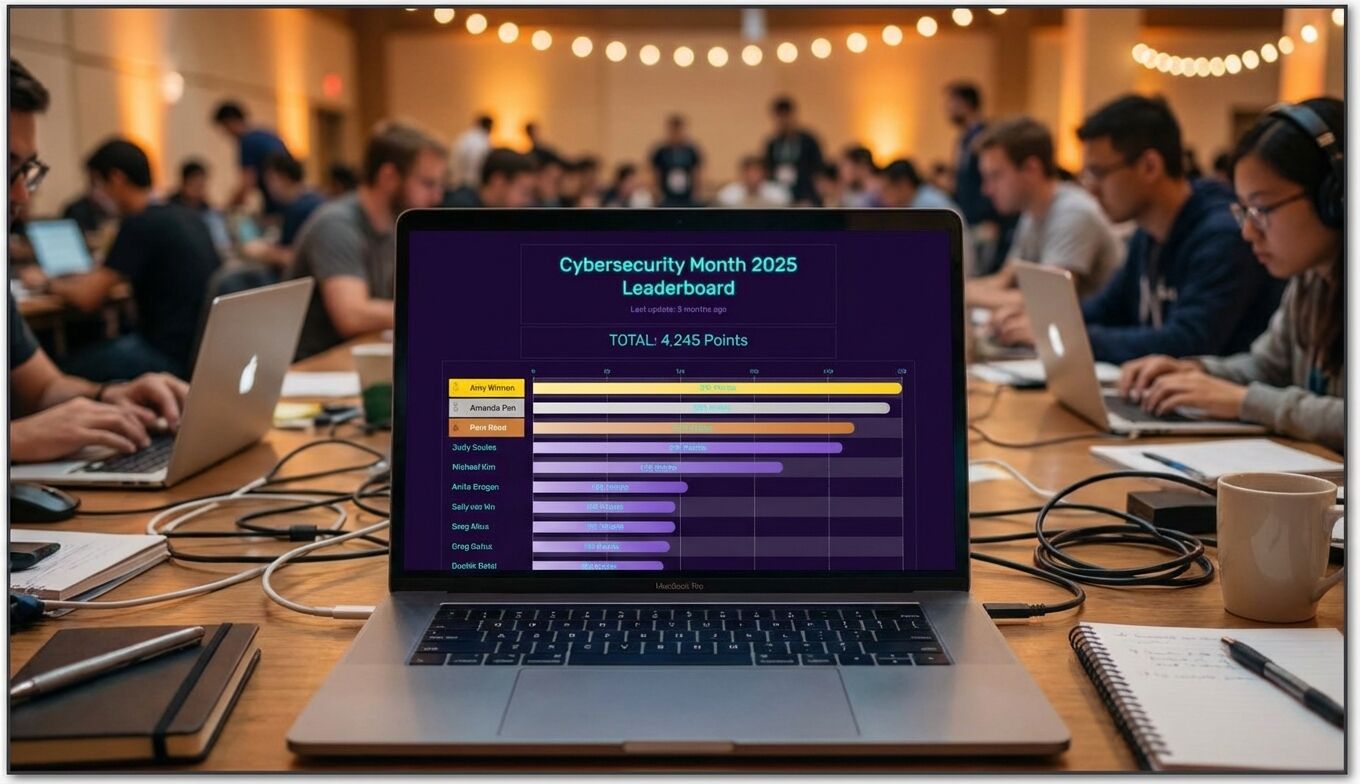
Cybersecurity Month 2025 Leaderboard
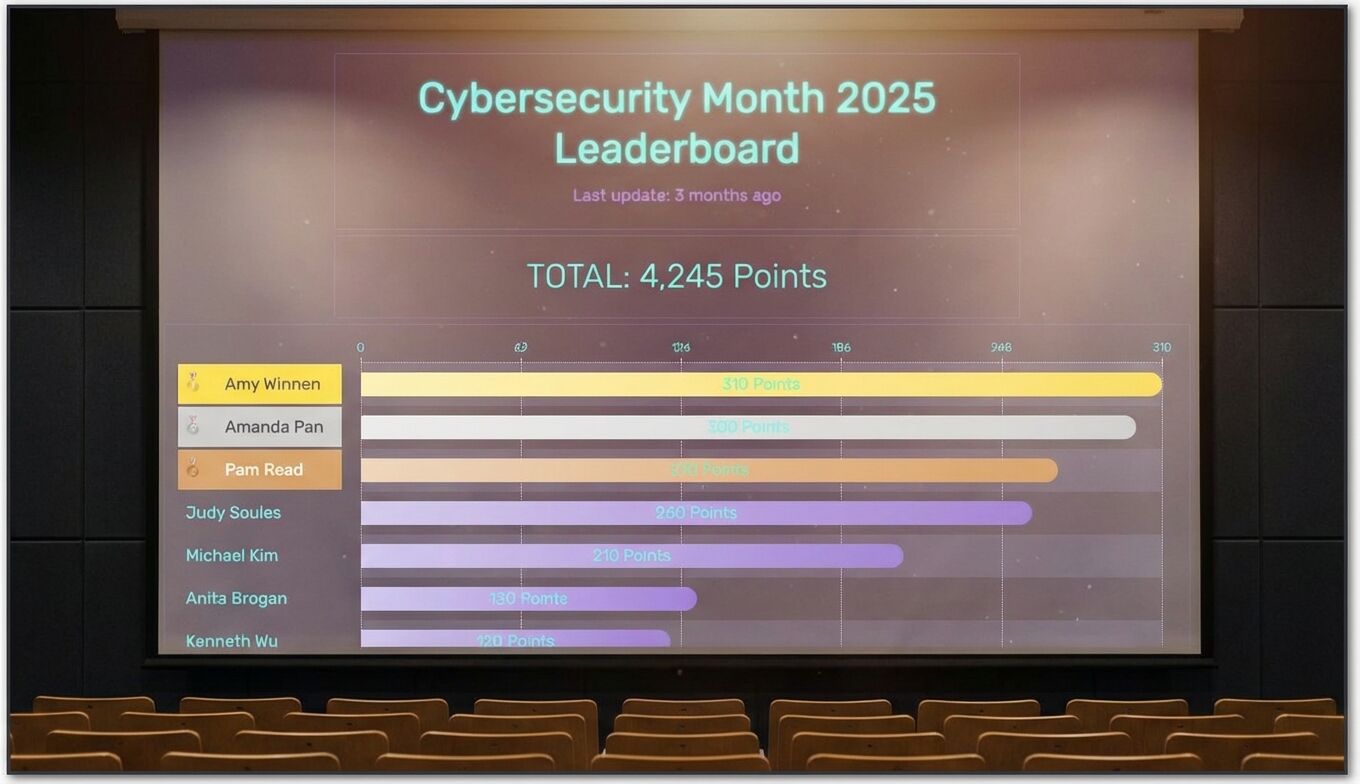
A month-long cybersecurity competition with a visual bar chart layout. Gold, silver, and bronze medals highlight the top three. The board total (4,245 Points) shows aggregate participation across all competitors.
Networking CTF
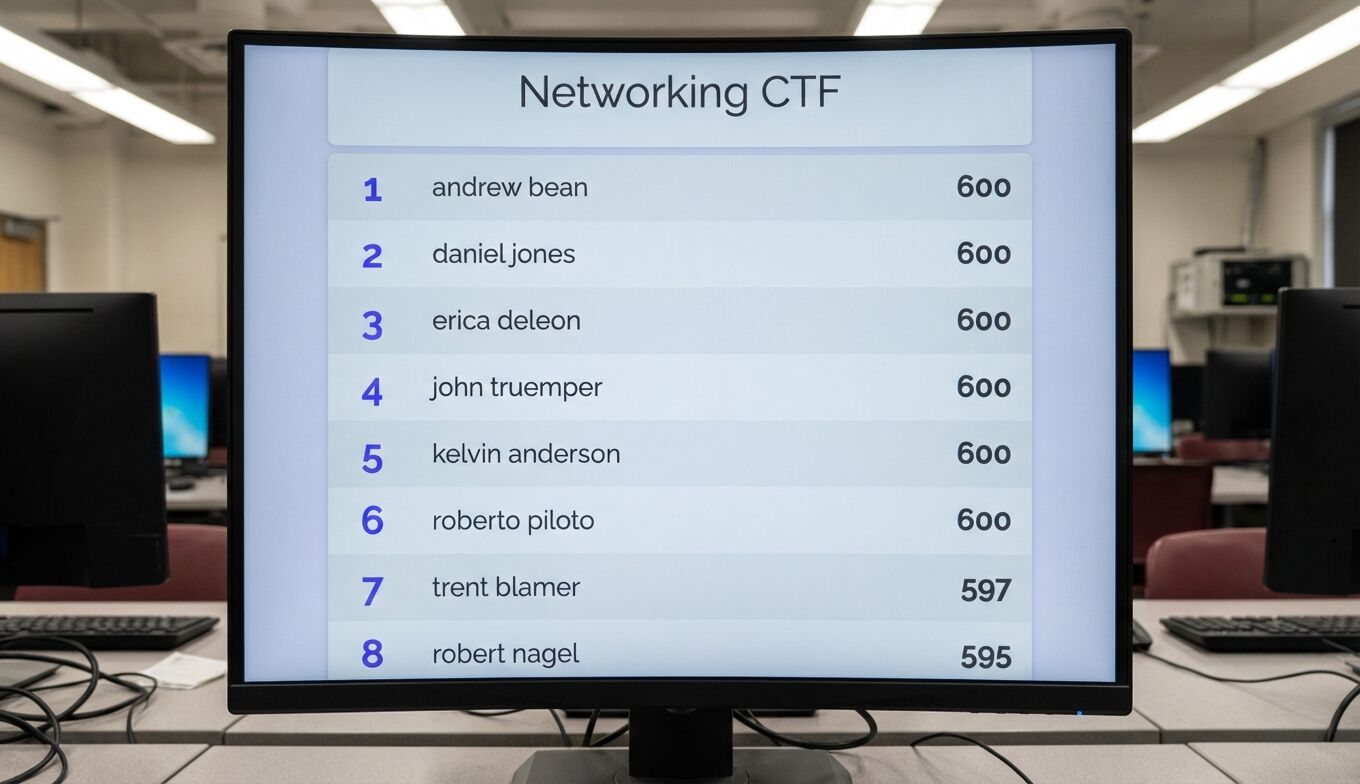
A university networking CTF with 90 participants. The clean, minimal layout works well for large competitions — only the top entries are visible on screen, with auto-scrolling available for venue displays.
All three are real competition leaderboards created by organizers on Leaderboarded.com.
Step-by-Step Setup
Step 1: Create a Leaderboard
- Go to leaderboarded.com and click Create a leaderboard
- Select the Leaderboard board type
- Name your board (e.g., "University CTF 2026")
Step 2: Add Teams and Set Initial Scores
Add each team as a player on the leaderboard. You can set starting scores to zero or pre-populate with scores from a previous round. Teams are automatically ranked by score — highest first.
Step 3: Add Your Branding
Upload your event logo, choose a color theme, and add a description. The description field is useful for displaying event rules, sponsor logos, or winner announcements after the competition.
Step 4: Display It
Once your board is set up, you have several display options:
- Projector/TV: Open the board URL in fullscreen mode on the venue display
- Multiple screens: Use different filtered views on different monitors
- Website widget: Add the leaderboard as a live widget on your event website
- Stream overlay: Add the board URL as a browser source in OBS for livestreamed events
For venue displays, append URL parameters to customize the view:
?show_search=false&allow_comments=false&rank_max=10
This hides the search bar and comments, and shows only the top 10 teams — clean and readable from across the room.
Learn more about display customization for TV setups.
Updating Scores During the Competition
There are three ways to keep scores current during a live CTF:
Manual Entry
For smaller competitions (under 30 teams), manual entry through the admin panel works well. One organizer keeps the Leaderboarded admin tab open alongside the CTF platform and updates scores at regular intervals — every 15 minutes, after each round, or after each challenge wave.
API Integration
For automated scoring, use the Leaderboarded API to push score updates directly from your CTF platform. This works particularly well with:
- CTFd: Write a plugin or webhook that posts score changes to the Leaderboarded API
- Custom platforms: Call the API from your scoring backend whenever a team solves a challenge
- Google Sheets bridge: If your scoring happens in a spreadsheet, connect Google Sheets directly or use a script to sync changes
The API accepts standard REST calls, so any platform that can make HTTP requests can update the leaderboard automatically.
Hybrid Approach
Many organizers use a hybrid: automated API updates for challenge scores, with manual adjustments for bonus points, penalties, or judge-awarded categories.
Tips from Real CTF Organizers
Based on how competitions like the ones above have used the platform:
Use the Description Field for Live Updates
Add announcements, hint releases, or rule clarifications to the board description. Participants check the leaderboard constantly, so it doubles as a communication channel.
Set Up Auto-Scrolling for Large Competitions
If you have more teams than fit on one screen, enable auto-scrolling (&autoscroll_enabled=true in the URL) so the display cycles through all teams on the venue projector.
Create Filtered Views for Different Tracks
Running a multi-track CTF (beginner, intermediate, advanced)? Create separate boards per track, or use rank filtering to show subsets on different screens.
Archive Results After the Event
The board stays live after the competition ends. Share the URL in your post-event wrap-up so participants can reference their final standings, share on social media, and show employers their ranking.
CTF Scoring for Judges
If your CTF includes a presentation or demo round where judges evaluate projects (common in hybrid hackathon-CTF events), check out Score Judge. It handles multi-judge scoring with independent evaluations and automatic aggregation — useful when you need fair, transparent judging across multiple criteria.
For pure automated CTF scoring (flag submission = points), a leaderboard on Leaderboarded.com is the better fit.
Frequently Asked Questions
Can I update the leaderboard from my phone?
Yes. The admin interface is mobile-friendly, so you can update scores from your phone while walking the floor of the competition venue.
How many teams can the leaderboard handle?
There's no practical limit. The examples above range from 9 to 90 teams, but the platform handles hundreds of entries. For very large competitions, use pagination or rank filtering on the display view.
Is there a free tier?
Yes. You can create and run a CTF leaderboard for free. Paid features include custom branding (your logo, no Leaderboarded watermark), advanced display options, and API access.
Can participants see the leaderboard in real time?
Yes. Share the public board URL with all participants. Score updates appear within seconds across all devices viewing the board.
Get Started
Set up your CTF leaderboard in under five minutes. Create a leaderboard, add your teams, and share the link.
Related Reading
- A leaderboard tool for hackathons — General hackathon scoring guide
- Scorekeeping for virtual competitions — Remote event setup
- Esports tournament leaderboards — Gaming competition scoring
- Trade show leaderboards — Live event display tips

Written by Caspar von Wrede
Founder of Leaderboarded. Building tools that help teams track progress and stay motivated.