How to Display Leaderboards on TVs and Screens
Learn how to show leaderboards on TVs and large screens. Set up multiple displays, use rank filtering for large events, and optimize viewing for any venue.
A leaderboard on a TV keeps people glued to it. Works for contests, classrooms, sales floors, conference halls. This guide covers the hardware bits and the URL tricks for big events.

You need a modern browser
The leaderboard is a web page. So the TV needs a real browser, or something attached to the TV needs one.
A lot of TVs ship with a browser built in. They're usually old and they break things. Don't trust the smart TV browser. Plug something into the HDMI port instead. A laptop, a mini PC, a Chromecast - anything that can render a current web page.
Hardware setup
Option 1: One computer, two displays
This is what most people do. HDMI cable from your laptop to the TV. The laptop screen is your admin view. The TV is the public board. Two browser windows, one on each.
The exact dual-display setup varies by OS. Here's a guide that walks through it.
Option 2: A second computer
Stick a separate laptop next to the TV with HDMI plugged in. Open the public link in its browser. You score from your phone or main laptop. The TV laptop just sits there and refreshes.
Option 3: A streaming dongle
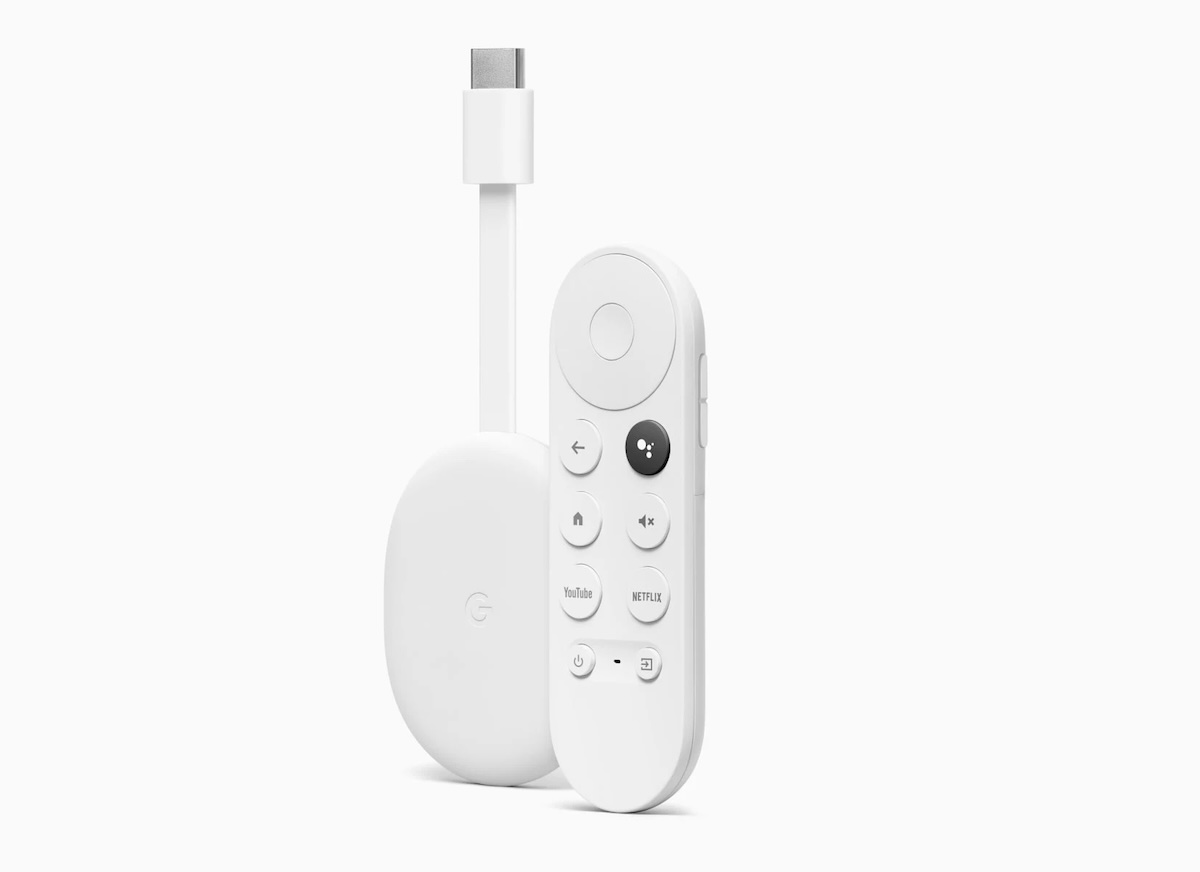
Plug a Chromecast or Apple TV into the TV. Get it on Wi-Fi. Cast the browser tab with the public leaderboard from your main computer.
Best when the TV is hard to get to. A board mounted up high in the lobby. A screen in a venue where you can't run a cable across the floor.

Make the leaderboard
You can be done in two minutes. Free plan handles most cases. No credit card.
You can score from anywhere, including your phone:
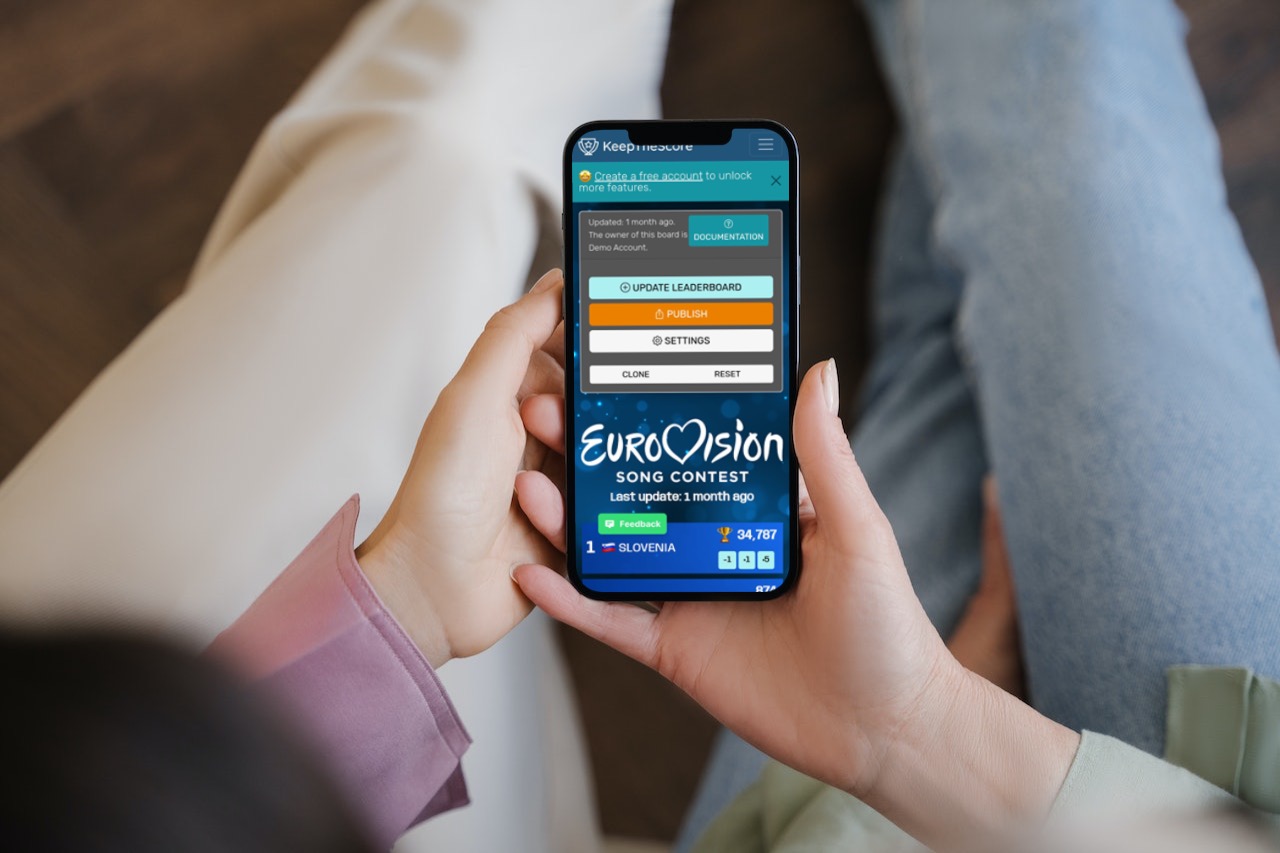
- Hit the button above and fill in the basics.
- Add participant names.
- Click CREATE LEADERBOARD.
- Want a theme? Click Appearance, go to the Themes tab, pick one.
- Click Share in the toolbar, then Share presentation link to grab the public URL.
- Open that link on the TV display.
- Double-click for full-screen if it's not already.
Update scores from the admin view whenever. The TV updates by itself.
You don't need to refresh the screen. The public view watches for changes and catches up within a second or two, on its own. And there's no limit on the number of devices: score from a phone and a tablet at the same time, or hand a helper a second device — every device updates the same board live.
Style It for the Screen
Open Appearance to pick a theme and fine-tune how the board looks from a distance. The customization guide covers layouts, themes, colors, and more.
Portrait or landscape screens
The board is a responsive web page, so it fits a portrait (vertical) screen just as well as a landscape one — handy for a tall display in a lobby or on a stand. On a narrow portrait screen the Table or Compact layout looks best. Double-click the board background to go full-screen.
Presentation Mode
Controlling and displaying on the same screen? Use Presentation Mode. It hides the UI but keeps you logged in as admin.
Turning it on and off
Enter: three-dots menu (⋮) → Enter presentation mode
Exit: click the easel icon in the top-right corner
The read-only public link is for viewers. Presentation Mode is for you. Same admin powers, just no chrome on screen, so you can flip back and update scores fast. It sticks across page refreshes.
URL tricks for TV displays
You can tweak the public board with URL parameters. Useful for digital signage, multiple screens, or stripping the page down to just what matters. Append them to the public URL.
Display controls
| Parameter | Values | Effect |
|---|---|---|
show_search |
true/false | Show or hide the player search box |
allow_comments |
true/false | Show or hide the newsfeed/comments section |
autoscroll_enabled |
true/false | Turn auto-scroll on or off |
Example: https://leaderboarded.com/board/abc123/?show_search=false&autoscroll_enabled=true
That hides search and turns on auto-scroll. Cleaner for a TV.
Rank filtering (leaderboards only)
Show only specific rank ranges. Great when the leaderboard is huge. On team boards, the filter shows the top N within each team.
| Parameter | Example | Shows |
|---|---|---|
rank_min=1&rank_max=10 |
Top 10 | Ranks 1-10 only |
rank_max=5 |
Leaders | Top 5 only |
rank_min=11&rank_max=20 |
Next tier | Ranks 11-20 |
rank_min=50 |
Bottom half | Rank 50 and below |
When you'd actually use this
Multiple TV screens
Different rank segments on each one:
- Display 1: Top 20 (
&rank_min=1&rank_max=20) - Display 2: Ranks 21-40 (
&rank_min=21&rank_max=40) - Display 3: Ranks 41-60 (
&rank_min=41&rank_max=60)
Tournament podiums
Show only the top 3 during the awards ceremony.
Team boards
Highlight the top performers within each team.
Everything updates live. Scores change, the screen catches up.
Combining parameters
Top 10 only, no clutter:
.../?public=true&show_search=false&allow_comments=false&rank_max=10
Auto-scrolling for ranks 11-30:
.../?public=true&autoscroll_enabled=true&rank_min=11&rank_max=30
Distraction-free full board:
.../?public=true&show_search=false&allow_comments=false
## Show multiple leaderboards on one screen Running several contests, teams, or rounds at once? You can put all of them on a single display — side by side in a grid, or rotating through one at a time. One TV covers everything, which makes it ideal for a busy trade show booth, a sales floor, or an event hall. > **This feature is enabled on request.** [Contact us](mailto:[email protected]?subject=Multiple%20leaderboards%20on%20one%20screen) and we'll switch it on for your account.
Tournament brackets
Running an elimination tournament? Our tournament bracket maker looks great on a TV. Matches advance on their own as games end. Office tournaments, trivia nights, community events - all good fits.
Pricing
The basic leaderboard is free. Start now. A few features (team logos, for example) need a paid plan. Details on the pricing page.