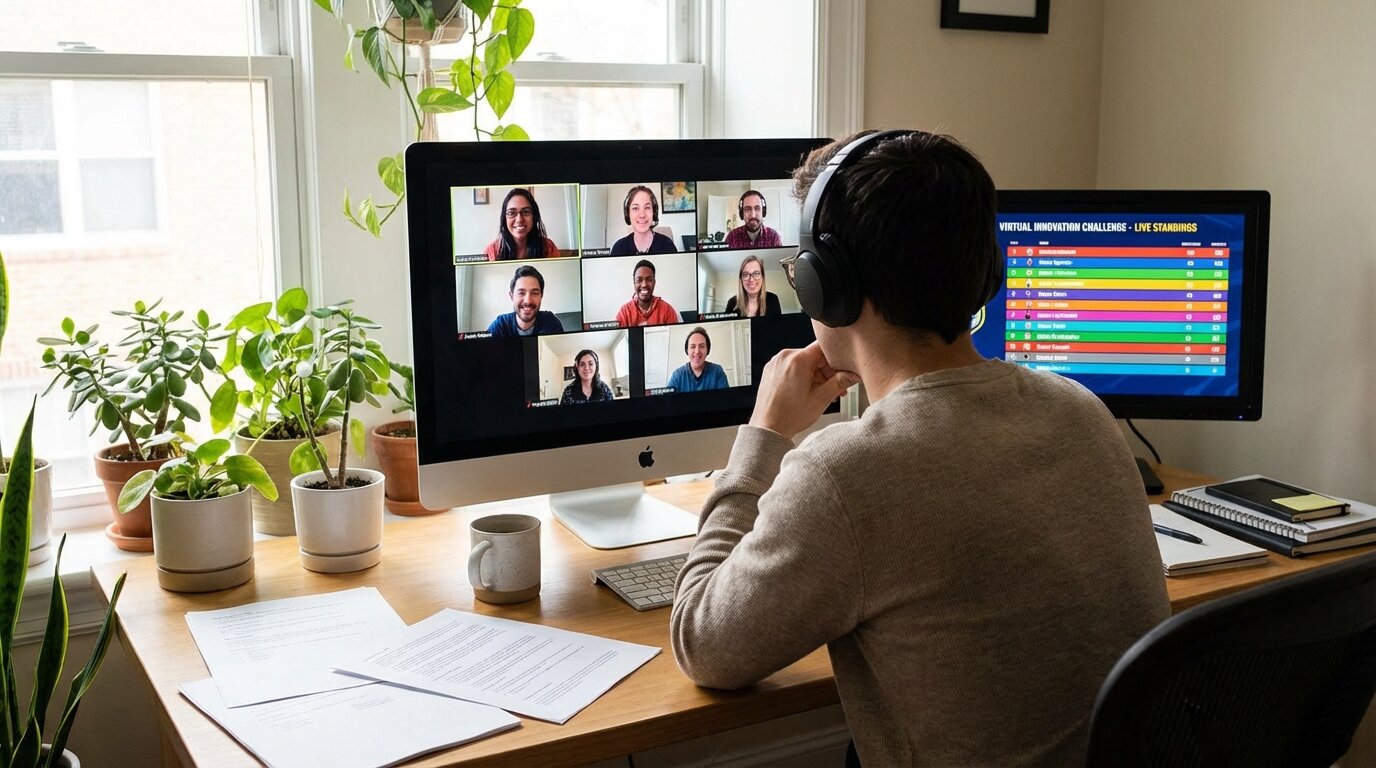
How to Set Up a Digital Leaderboard System for Trade Shows
Step-by-step guide to setting up cloud-based leaderboard displays for trade show booths, including technical setup, display optimization, and data capture.
Article Contents
Why Leaderboards Work at Trade Shows
Put someone's name on a big screen and they come back to check their standing. They bring colleagues over to show off their score. And they'll happily hand over their contact details for the chance to compete.
That's what makes a digital leaderboard the perfect engine for a booth game: it turns a few minutes of fun into repeat visits, real conversations, and qualified leads. Unlike a physical scoreboard, a cloud-based leaderboard updates in real time on any screen and captures every entrant's details automatically.
 Digital leaderboard display at trade show booth
Not sure what game to run? Start with 12 Interactive Trade Show Games to Attract Booth Visitors, then come back here to wire up the scoring.
Set Up Your Leaderboard in Three Steps
A browser-based leaderboard needs no installation and no special hardware, so you can be live in under ten minutes.
1. Create the Leaderboard
Pick the format that matches your game. Points-based works for VR challenges, arcade games, and surveys. Time-based suits speed competitions like assembly races or reaction tests. Achievement-based tracks milestones such as social shares or photo challenges.
2. Add Your Branding
Upload your logo, set your brand colors, and choose how participants appear — names, photos, and any custom fields you want to collect. Add your booth number so people remember where to find you. The full customization guide covers every option.
3. Put It on the Big Screen
Large screens or projectors make the best booth displays, and you can run several at once in different spots. Print a QR code next to the screen so attendees can pull up the live standings on their own phones — and keep checking back after they've walked away.
Get Attendees Onto the Board
There are two ways to add competitors, and you can mix both:
- Your staff enter them — a team member types each name and score from a phone or tablet as people play.
- Attendees add themselves — turn on Quick Join and people scan a QR code to put their own name on the leaderboard in seconds. No app, no account, and your staff stay free for conversations instead of data entry.
Quick Join is ideal for a busy booth: you keep full control of every score, while each visitor only ever adds their own row. For the full walkthrough, see QR code sign-up for leaderboards.
Capture Additional Participant Information
When adding or editing participants, you can optionally capture extra information like email addresses, organization names, and custom fields. This information:
- Is never visible on the public leaderboard
- Appears only in your admin view
- Is included when you download your data as CSV
- Perfect for lead generation at trade shows, contests, and events
Learn more: See our complete Participant Data Capture documentation for setup instructions, use cases, and privacy guidelines.
This feature requires activation. Contact us to get started or request additional custom fields.
Optimize Your Display

A few URL tweaks make the leaderboard look its best on a booth screen: add &show_search=false to hide the search box, &autoscroll_enabled=true to auto-scroll long participant lists, and rank filtering to show only the top performers. See the full list of TV display options.

Show multiple leaderboards on one screen
Running several contests, teams, or rounds at once? You can put all of them on a single display — side by side in a grid, or rotating through one at a time. One TV covers everything, which makes it ideal for a busy trade show booth, a sales floor, or an event hall.
This feature is enabled on request. Contact us and we'll switch it on for your account.
Case Study: From Clipboard to Live Leaderboard
Unique Ideas, an event entertainment company, switched from physical scoreboards to digital leaderboards for their trade show activations. The results:
- 40% higher participant engagement
- Simpler score management for booth staff
- Stronger data capture for post-event follow-up
- Staff freed for customer conversations without losing the competitive buzz
What made it work: staff were trained on mobile score entry before the event, multiple prize tiers kept people playing all day, QR codes let attendees follow the standings after leaving the booth, and hourly resets gave newcomers a fresh shot at winning.
What You Need (and What You Don't)
Cloud-based systems keep the requirements minimal:
- You need an internet connection, a display screen, a phone or tablet for scoring, and a web browser.
- You don't need software installation, IT support, expensive hardware, or complex configuration.
Best Practices
Before the Event
Test with mock data, train booth staff on score entry, and print your QR codes — both the one for viewing scores and, if you're using it, the Quick Join code attendees scan to add themselves. Post clear game rules near the display.
During the Event
Position the display at eye level with good lighting. Reset the leaderboard periodically — hourly resets give newcomers a chance to win. Keep a mobile hotspot on hand in case the venue wifi fails.
After the Event
Export your data right away and send personalized follow-ups while attendees still remember you. Share the final standings on social media to extend your reach beyond the show floor.
For high-traffic booths, look at virtual queue management or adding more game stations.
Prefer to Hand It Off?
If you're an experiential agency or booth-build firm running the activation for a client — and the scoreboard needs to match brand guidelines exactly, fit the run of show, and ship in days rather than weeks — see our done-for-you custom event scoreboards: a flat fee, a fully branded build, and on-call support during the show.
Get Started
Setup takes minutes: create your branded leaderboard, turn on Quick Join so attendees can add themselves, put a QR code on the screen, and go live.
Running a multi-booth event? A QR code scavenger hunt lets attendees check in at each exhibitor — no app download, no signup.

Written by Caspar von Wrede
Founder of Leaderboarded. Building tools that help teams track progress and stay motivated.