Sales Leaderboard on a TV: Setup Guide
How to put a live sales leaderboard on a TV in your office. Covers hardware options, display settings, and board design for readability at a distance.
Article Contents
A sales leaderboard that lives in a browser tab gets checked once a day — if that. A sales leaderboard on a TV in the middle of the sales floor gets checked every time someone walks past it. That's the difference between data that exists and data that changes behaviour.
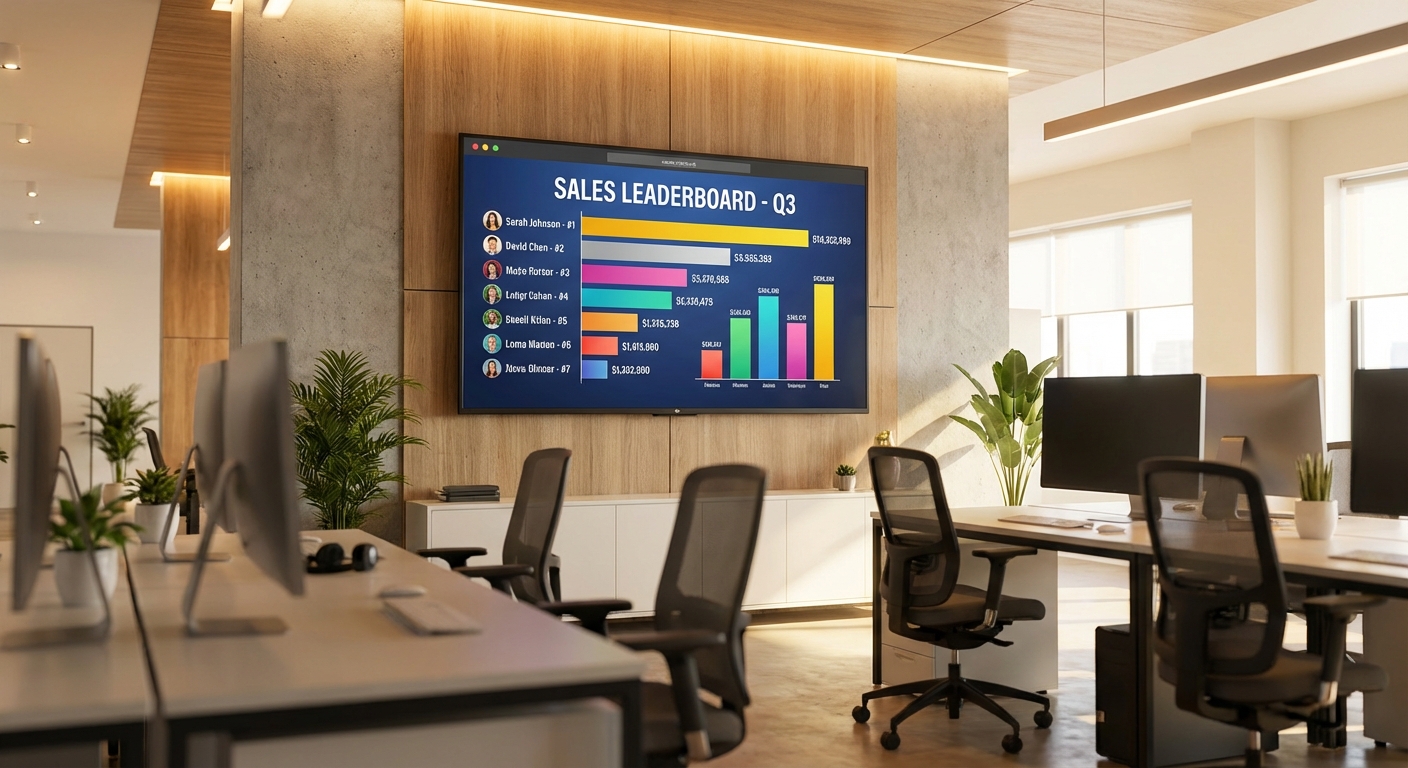 A live leaderboard on the sales floor creates constant, ambient awareness of where everyone stands.
The concept isn't new. Trading floors have had ticker screens for decades. Call centres have had wallboards since the '90s. What's changed is that you no longer need custom software, a dedicated PC, or an AV team to set one up. A TV with an HDMI port and a browser is enough. Animated TV leaderboards are also the marquee feature of every enterprise sales gamification platform — but a browser pointed at a live board does the same job for a fraction of the cost.
Why a TV Instead of Just a Link
You might be thinking: everyone already has the leaderboard link, why bother with a screen?
Because nobody clicks links voluntarily. A Slack message with a leaderboard URL gets opened once, glanced at, and closed. A TV on the wall is always on. It doesn't compete for attention with email, it doesn't require anyone to remember to check — it's just there, updating in real time.
The psychological mechanism is social facilitation — people perform differently when they know they're being observed. A wall-mounted leaderboard makes performance public in the most literal sense. The rep who just closed a deal sees the number tick up. The rep who's been on the phone all morning sees the calls column prove it. That immediacy is what spreadsheets and Slack screenshots can't replicate.
Hardware: What You Actually Need
You need two things: a screen and something to run a browser on it. The leaderboard is a web page — any device that can open a URL in Chrome or Firefox will work.
Option 1: Laptop connected via HDMI
The simplest setup. Plug your laptop into the TV, drag the browser window onto the TV screen, hit F11 for fullscreen. Use your laptop screen for the admin view (where you update scores) and the TV for the public leaderboard.
This works well for temporary setups — a sales sprint, a contest week, a quarterly push. The downside is that someone's laptop is now tethered to a TV.
Option 2: Chromecast or Apple TV
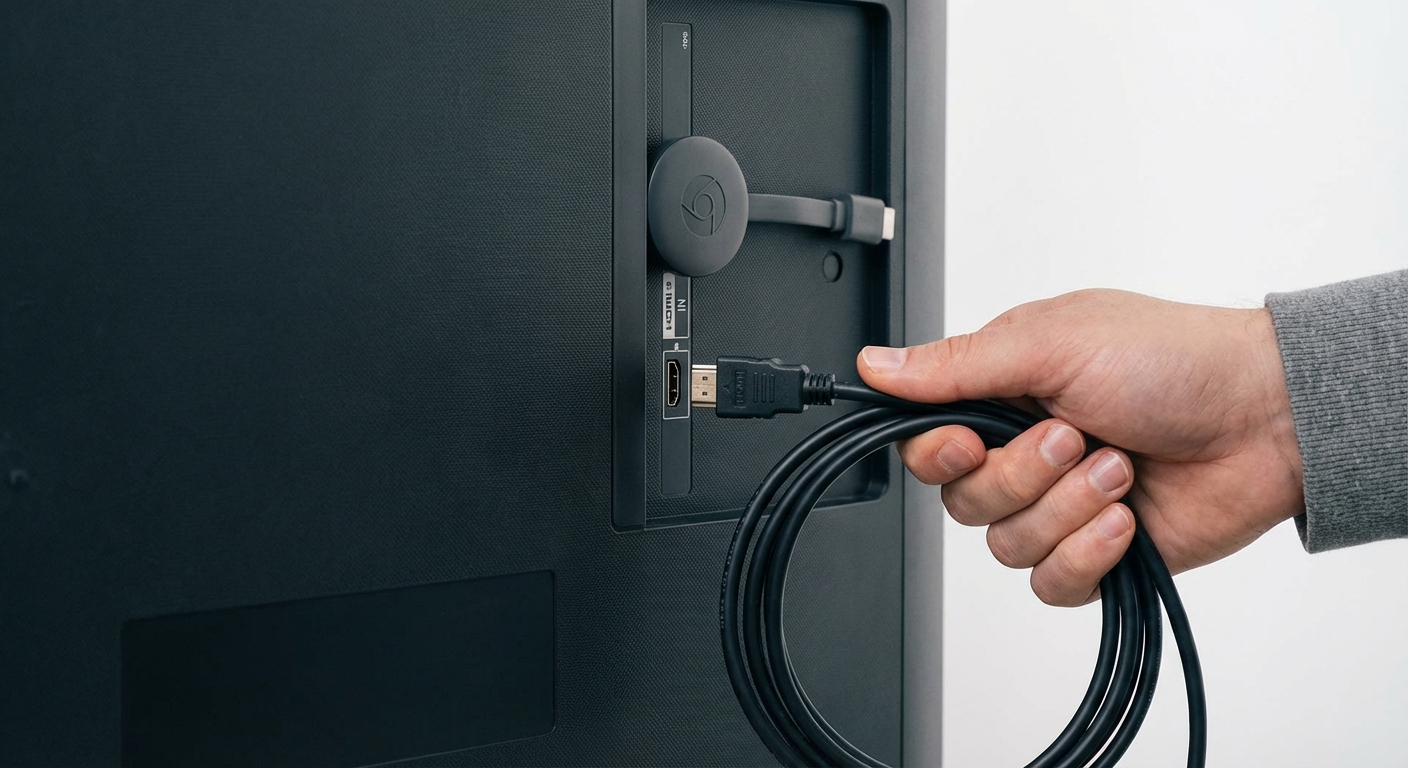 A streaming dongle is the cleanest option for TVs that are hard to reach.
Plug a Google Chromecast or Apple TV into the TV's HDMI port. From your laptop, cast just the browser tab showing the leaderboard. The tab stays live on the TV; you close your laptop and walk away.
This is the best option for wall-mounted TVs where running a cable is impractical. A Chromecast costs around $30 and takes five minutes to set up.
Option 3: Dedicated mini PC
For a permanent installation — a TV that always shows the leaderboard, even after power cycles — connect a mini PC. Three options that work well:
- Raspberry Pi — cheapest, runs a stripped-down Chromium kiosk on Linux
- Intel NUC — small, silent, runs full Windows or Linux
- Windows stick PC — plugs directly into the HDMI port, no cables
Set the browser to launch at startup with the leaderboard URL. Tape the power button, forget about it.
This is what most offices end up with after they've tried the Chromecast approach for a month and decided the leaderboard is staying. The mini PC costs $50–$150 and eliminates the "who's casting?" question entirely.
Designing the Board for TV Readability
A leaderboard that looks fine on a laptop can be unreadable on a TV from across the room. Distance changes everything about how information needs to be presented.
Keep it to 10–15 rows
If your team is larger than that, use rank filtering to show the top performers on one screen. You can run a second TV showing the next segment, or let the board auto-scroll through everyone.
A board with 40 names in tiny font is a board nobody reads. Better to show 10 names in large, clear text.
Use multi-column layout for larger teams
The multi-column layout spreads participants across the screen width instead of stacking them in a single tall list. More names fit without scrolling, and the text stays larger. Switch layouts in the Appearance settings.
Limit the number of metrics
Three to four columns is the maximum for TV readability. Revenue, deals, calls — fine. Revenue, deals, calls, conversion rate, pipeline value, meetings booked, proposals sent — that's a spreadsheet on a wall, not a leaderboard. If you need to track that many metrics, use a multi-column board but choose which three columns the TV display ranks by.
Choose a dark theme
Most leaderboard themes have a dark variant. Use it. Dark backgrounds reduce glare in well-lit offices and make the numbers pop. A bright white leaderboard on a TV is the office equivalent of a flashlight in your face — it gets turned off within a week.
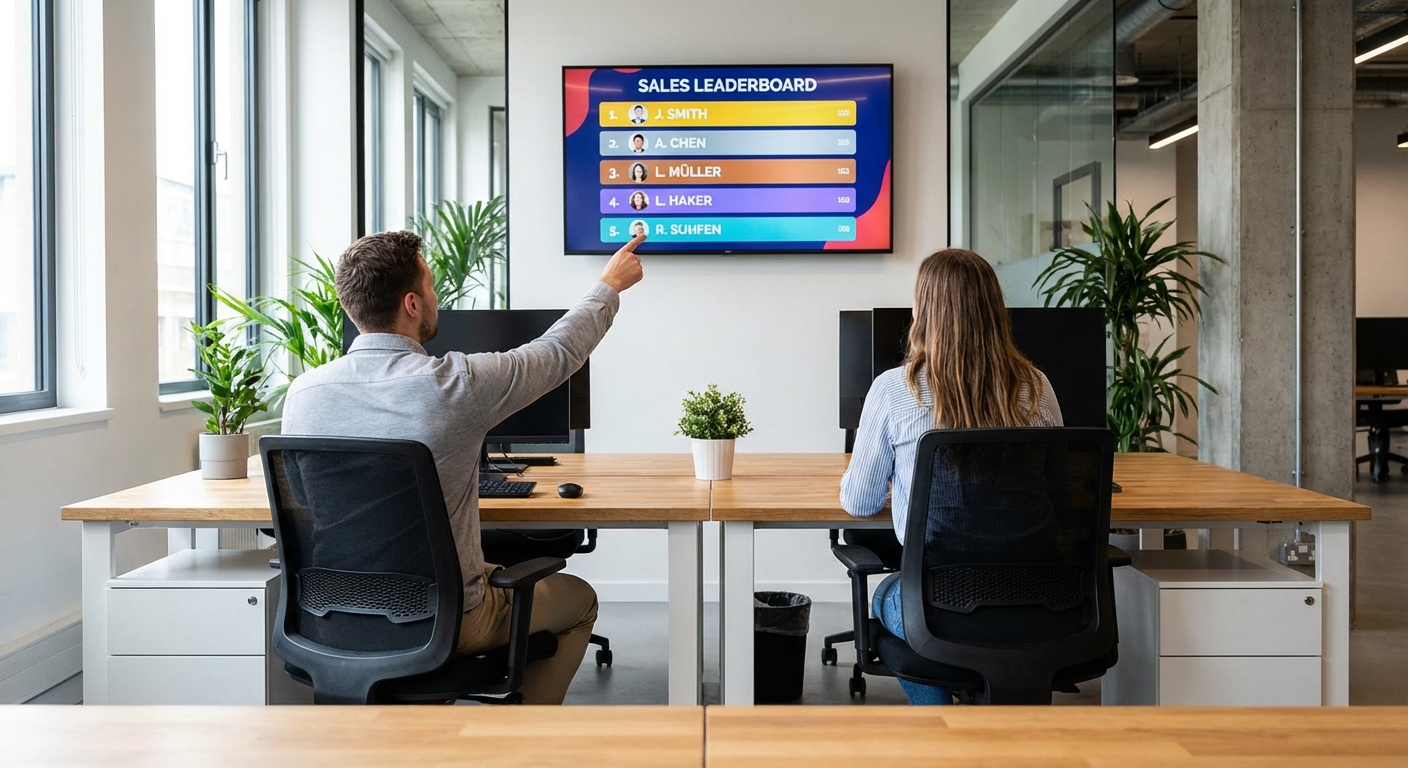 Design for the person standing 3 metres away, not the person at a desk.
URL Parameters for TV Displays
Once your board is live, customize the display using URL parameters on the public link. These control what shows up on the TV without affecting the admin view.
| Parameter | What it does |
|---|---|
show_search=false |
Hides the search box — nobody's typing on a TV |
allow_comments=false |
Hides the newsfeed section for a cleaner display |
autoscroll_enabled=true |
Auto-scrolls through long lists |
rank_min=1&rank_max=10 |
Shows only ranks 1–10 |
Combine them for a clean setup:
your-board-url/?show_search=false&allow_comments=false&rank_max=15
For the full list of parameters and multi-screen configurations, see the TV display documentation.
Multi-Screen Setups
If you have multiple TVs — or a big team — split the leaderboard across screens using rank filtering:
- Screen 1 (main floor): Top 10 —
&rank_min=1&rank_max=10 - Screen 2 (break room): Ranks 11–20 —
&rank_min=11&rank_max=20 - Screen 3 (entrance): Top 5 only —
&rank_max=5
Each screen loads a different URL with different rank parameters. All update from the same board in real time. Update a score once; it appears on every screen simultaneously.
This is especially useful for sales contests where you want the top performers visible to the whole office but don't want the lower rankings on the main display.
Show multiple leaderboards on one screen
Running several contests, teams, or rounds at once? You can put all of them on a single display — side by side in a grid, or rotating through one at a time. One TV covers everything, which makes it ideal for a busy trade show booth, a sales floor, or an event hall.
This feature is enabled on request. Contact us and we'll switch it on for your account.
Keeping It Running
Auto-refresh
The leaderboard updates in real time — scores appear on the TV within seconds of being entered. No manual refresh needed. If you're using a Chromecast tab cast, the cast stays live as long as your laptop is open and connected to the same network.
Preventing screen sleep
TVs and connected devices go to sleep. For a permanent setup:
- On the TV: Disable sleep/screensaver in the TV settings
- On the computer: Set display sleep to "Never" in power settings
- On Chromecast: It stays active as long as it's casting — but will return to the ambient screen if casting stops
What happens during a power outage
If the TV or device restarts, you'll need to reopen the browser and navigate back to the URL. The mini PC approach handles this best — set the browser to relaunch on startup with the leaderboard as the homepage.
Setting Up Your Board
Leaderboarded supports all the display options above out of the box. Create your board, add your team, share the public link to the TV.
For a broader look at setting up sales leaderboards (not just the TV part), read our step-by-step guide to creating a sales leaderboard. For tracking multiple KPIs on the same board, see the multi-KPI leaderboard guide.
NOTE: As an Amazon Associate, I earn from qualifying purchases.

Written by Caspar von Wrede
Founder of Leaderboarded. Building tools that help teams track progress and stay motivated.