
This guide walks through every step of creating an online leaderboard with Leaderboarded. It's the same five-step process regardless of what you're tracking — a sales contest, a classroom points system, a fitness challenge, a fundraising campaign — but each step has choices worth knowing about before you make them.
Want the deeper concept dive first? See what is a leaderboard for types, scoring methods, and use cases. If you're picking between a leaderboard and a sport scoreboard, read leaderboard vs scoreboard. Otherwise, keep reading.
Quick context
A leaderboard ranks participants by score, performance, or progress — usually over a period of time. The "creating" part is mostly choosing a format, listing who's competing, and deciding how scores will be entered. Everything else is polish.
A spreadsheet can do this, technically. The reason most people use a dedicated tool is the four things spreadsheets don't do well: automatic re-sorting on every score change, a shareable link anyone can open without a Google account, a visual style that doesn't look like a spreadsheet on a TV, and a controlled write-access link so one person can update scores without giving out full edit rights to the file. If those four things matter, skip the spreadsheet. If they don't, a Google Sheet might genuinely be enough.
The five-step process
Below is the full flow. Each step is a real choice with trade-offs — not just clicking through a wizard.
1 Pick the board format
This is the most consequential step. Get it right and the rest is straightforward. Get it wrong and you'll be fighting the format every time you update scores.
Leaderboarded offers six formats:
- Leaderboard — running rankings, the default. Use this for sales contests, fitness challenges, classroom points, gaming.
- Scoresheet — round-based scoring. Each round is a column, each participant a row. Use for golf tournaments, multi-round trivia, bowling, board-game sessions.
- Multi-column — several score columns per participant. Use for fantasy sports (points / assists / rebounds), comprehensive performance reviews, multi-event tournaments.
- Team board — individual scores roll up to team totals. Use for classroom house points, sales-team rollups (regions, pods), relay-style competitions.
- Goal tracker / fundraising thermometer — visual progress toward a target. Use for fundraising campaigns, step challenges, reading goals, sales-quarter quotas.
- Registration board — sign-up plus leaderboard combined. Use for event-style competitions where participants register themselves.
Rule of thumb: if you're tracking a single cumulative number per person, use a leaderboard. If you've got multiple metrics per person, multi-column. If teams matter more than individuals, a team board. If the target matters more than the ranking, a goal tracker.
2 Add participants
Three ways: type names in directly, paste a list from a spreadsheet, or upload a CSV. All three work. Use whichever is faster for the participant count you're dealing with — typing for under 10 names, paste-from-spreadsheet for 10–50, CSV upload for 50+.
The free plan supports up to 25 participants per board. Plus is 100, Pro is 1000. If your participant list is in flux (a sales team that hires monthly, a class roster that changes terms), you can add or remove participants any time without losing their existing scores.
Tip: include a column for avatar images if you can. Faces on the leaderboard increase engagement by a noticeable amount — participants pay more attention when they can see themselves on the screen.
3 Enter or sync scores
You've got four ways to keep scores flowing in. Pick based on where the source of truth lives.
| Method | When to use it |
|---|---|
| Manual via admin link | You (or a small group) are the source of truth. Update from your phone, laptop, or any browser. Simplest setup, fastest to start. |
| Scorekeeper link | Someone else enters scores but shouldn't have full admin rights — a classroom helper, a volunteer at an event, a team lead updating their pod. |
| Google Sheets sync | Scores already live in a sheet (or in a CRM that feeds a sheet via Zapier). Update the sheet, the leaderboard updates automatically. |
| REST API | Scores come from another system — a CRM via a custom integration, a game server, a CTF platform, a fitness tracker, a custom-built app. |
You can mix methods. A common setup: scores arrive via Google Sheets sync most of the time, with a scorekeeper link as the backup when someone needs to enter a correction on the fly.
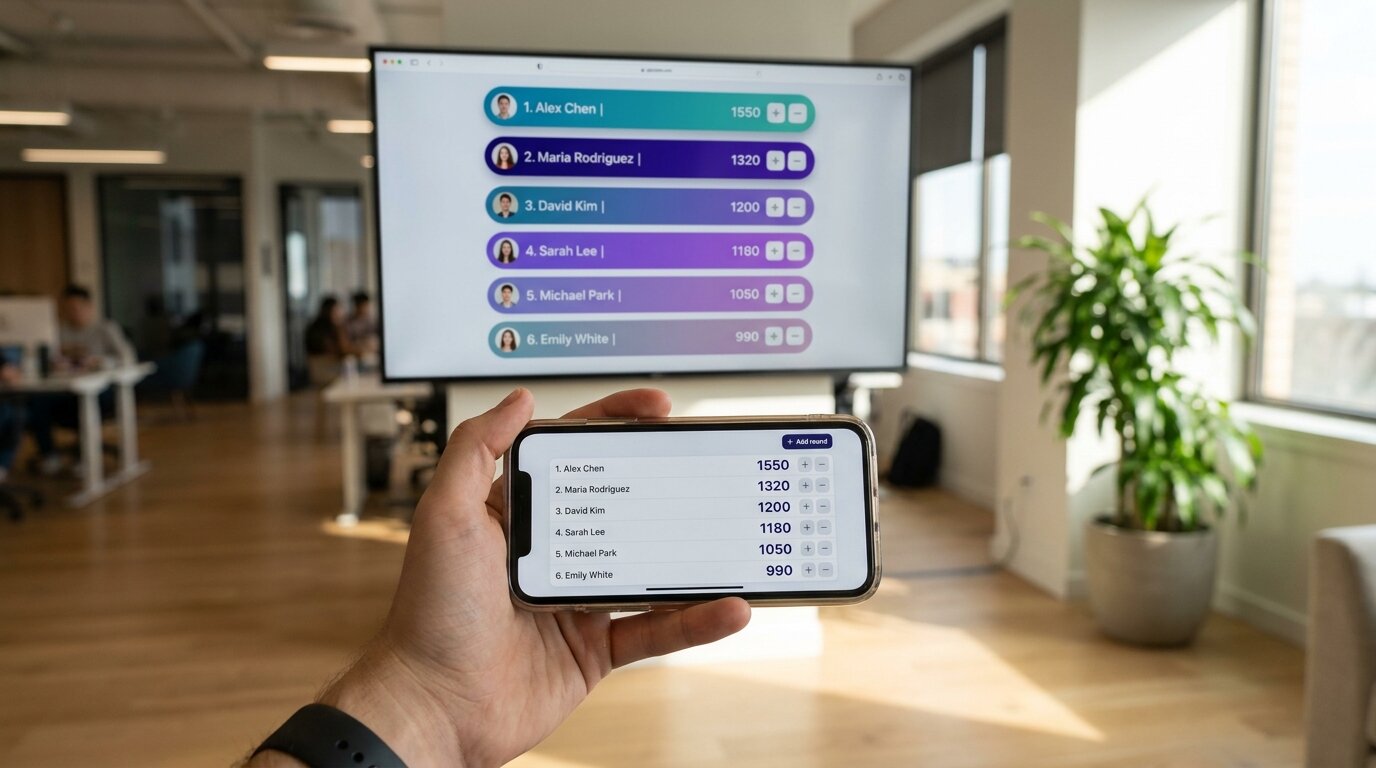
Rankings recalculate automatically every time a score changes. Anyone watching the leaderboard sees the updated order within a second or two, with no page refresh.
4 Customise the look
Optional but worth doing if the board will live on an office TV, an embedded webpage, or anywhere your audience sees it more than once. Pick a built-in theme, change colours, upload a logo, or use custom CSS if you want full control. Paid plans unlock custom branding (logo + colours); custom CSS is available across paid plans.
The default theme works fine for one-off use. If you're running an ongoing campaign — a quarter-long sales contest, a school year of house points — branding makes the board feel like part of the campaign rather than a generic tool.
Tip: if you're putting the board on a TV, test the visual contrast from across the room first. Themes that look great on a laptop don't always read well from 4 metres away. The "high-contrast" themes are designed for distance viewing.
5 Share the board
Three links per board, each with different access:
- Admin link — full control. Only share with people who need to edit settings and manage participants.
- Scorekeeper link — can enter scores but can't change settings or remove participants. Use this for volunteer scorekeepers.
- Presentation link — read-only. Anyone with the link can view the live leaderboard from any device.
For displays, every board also opens full-screen in any browser. Cast to a smart TV, Chromecast, or Fire Stick. For websites, embed the board via iframe (paid plans) on a Notion page, intranet, event landing page, or charity site. For streamers, the same iframe loads as an OBS browser source for live-broadcast overlays.
Every board also has a QR code on the share dialog — useful for events, classrooms, or anywhere participants need to scan to view their standing without typing a URL.
What about a spreadsheet leaderboard?
Honest take: a Google Sheet can be a perfectly fine leaderboard for the right job. If you've got fewer than 10 participants, the scores live in a sheet anyway, and nobody's going to display it on a TV, just use the sheet. We even have a guide to building one.
Where a sheet starts to break down: when you want a public link that doesn't require a Google account, when you want it to look like a leaderboard rather than a spreadsheet, when more than one person needs to update scores without giving out full edit rights to the entire sheet, or when you want real-time updates on a TV display. If any of those become important, a dedicated leaderboard maker takes over.
For a head-to-head comparison of leaderboard tools (Leaderboarded vs Scoreleader vs LeaderboardHQ vs Spinify vs Plecto vs SalesScreen vs BoardQ vs Google Sheets), see the best online leaderboard maker tools guide.
Common patterns by use case
Same five steps, different defaults. Below are the configurations that work for the most common scenarios.
Sales contest
Standard leaderboard or team board (if you're running pods or regions). Scores come from a CRM via Zapier into a Google Sheet, or directly via the API. Display on the office TV. Use a scorekeeper link for the sales manager to make manual corrections when needed. See the sales leaderboard page for the full setup.
Classroom competition
Team board if you're running houses or table groups; standard leaderboard if it's individual. Manual score entry from the admin link or a scorekeeper link for a classroom assistant. Display on the smartboard or an interactive whiteboard. Add avatar images for students — engagement jumps significantly. See classroom leaderboard.
Fundraising campaign
Goal tracker board, not a standard leaderboard — the target matters more than the ranking. Optional: a secondary team-board if multiple teams are competing within the campaign. Embed on the campaign page, share via QR code at events. See fundraising thermometer.
Fitness or workplace wellness challenge
Team board if it's a group competition (departments, offices, locations); goal tracker if it's everyone-against-a-target (collective 1M steps). Scores entered manually or via a fitness-tracker integration through Zapier. See workplace wellness leaderboards.
Tournament or multi-round event
Scoresheet board (each round is a column). One scorekeeper link per round-judge so multiple people can enter scores for their assigned round. Display on the event screen. The cumulative total across rounds is the final ranking.
Streamed competition
Standard leaderboard. Update from a phone or laptop while the stream is running, load the board as an OBS browser source. See the OBS overlay guide.

Tips and common mistakes
- Don't over-design the first board. The default theme works. Get the scoring flow right first, then come back and customise once you know participants are actually engaging with it.
- Pick the format once, then stick with it. Switching between leaderboard and team board mid-campaign breaks momentum. Decide on day one and run.
- Don't put 200 people on one leaderboard if 20 of them are the audience. A board with too many participants becomes hard to read — people stop scrolling past their own row. If you've got a large group, consider splitting into multiple team boards or filtering by department.
- Use the scorekeeper link. Even if you think you'll be the only one entering scores, the moment you go on vacation or fall ill, having a scorekeeper link ready saves the campaign. Share it with a designated backup person.
- Avatar photos increase engagement noticeably. Worth the 10 minutes to set them up. Sterile name-only leaderboards engage less.
- Test the TV display from the back of the room. Boards that look great on a laptop don't always read from distance. Switch themes or bump up font sizes if needed.
How long does this actually take?
A first leaderboard with a list of participants and a few scores typed in: about 3 minutes. With Google Sheets sync and custom branding: 10–15 minutes. With a Zapier-built CRM pipe, a custom-CSS theme, and a scorekeeper handover document: half a day — but that's a once-per-campaign setup, not something you redo each week.
The bulk of the work is deciding what to track and how to score it. The tooling itself stays out of the way.
Create your first leaderboard
The free tier covers most one-off use cases — up to 25 participants per board, no credit card required, no Leaderboarded branding on the board. If your campaign grows, paid plans start at $19/month.
Frequently asked questions
How do I create an online leaderboard?
Pick a board format, add participants, enter or sync scores, customise the look if needed, and share the link. With a dedicated tool like Leaderboarded the full process takes about five minutes and doesn't require any code, formulas, or spreadsheet wrangling.
Do I need to install anything to create a leaderboard?
No. A web-based leaderboard maker runs in any modern browser. There's nothing to install on your computer, phone, or the display device. Participants and viewers don't need accounts either — anyone with the link can see the leaderboard.
Can I create a leaderboard for free?
Yes. Leaderboarded's free plan covers up to 25 participants per board on up to 2 boards — enough for most one-off contests, classroom competitions, and small fundraisers. Paid plans unlock more boards, more participants, custom branding, Google Sheets sync, and the REST API.
How do scores update in real time?
Every score change pushes to every connected viewer instantly. There's no page refresh required — the leaderboard re-sorts and re-renders automatically. You can enter scores from a phone while a TV across the room shows the updated standings within seconds.
Can multiple people enter scores on the same leaderboard?
Yes. The admin link gives full control. A scorekeeper link is a separate URL that allows score entry only — no settings access, no participant management. Useful for volunteer scorekeepers at events, team leads updating their pod's numbers, or classroom assistants entering points without admin access.
Can I connect a leaderboard to a spreadsheet or CRM?
Yes. The simplest path is connecting a Google Sheet — update the sheet, the leaderboard updates. For CRM data, pipe scores through Zapier (or similar) from Salesforce, HubSpot, Pipedrive, or any system into the sheet or directly via the REST API. CSV imports also work for one-off uploads.