QR Code Sign-Up: Let Participants Add Themselves to Your Leaderboard
Use a QR code sign-up sheet so event participants add themselves to your live leaderboard — no app, no account. A step-by-step guide for tournaments and events.
Article Contents
The slowest part of any event leaderboard
You've set up a great leaderboard for your tournament, booth game, or fundraiser. Then the event starts — and you're stuck at a laptop typing in name after name while a queue forms in front of you. Every minute spent on data entry is a minute not spent running your event.
A QR code sign-up flips this around. Instead of collecting names yourself, you display a QR code and let people add themselves. Each person scans, types their own name, and they're on the board in about fifteen seconds.

What is a QR code sign-up sheet?
A QR code sign-up sheet replaces the paper clipboard (or the manual typing) with a code people scan on their phones. Point a phone camera at the code, a sign-up form opens in the browser, and the entry lands straight on your leaderboard — no app to install and no account to create.
This is different from event registration tools that force attendees to make an account first. For a walk-up event, every extra step costs you sign-ups. The whole point of a QR code check-in is speed: scan, type a name, done.
On Leaderboarded this is built in, and it's called Quick Join.
How to set up QR code sign-up for your leaderboard
Here's the full flow, start to finish.
1. Create your leaderboard
Make a leaderboard for your event the usual way and add a couple of test entries if you like. (New to this? Start here.)
2. Turn on Quick Join
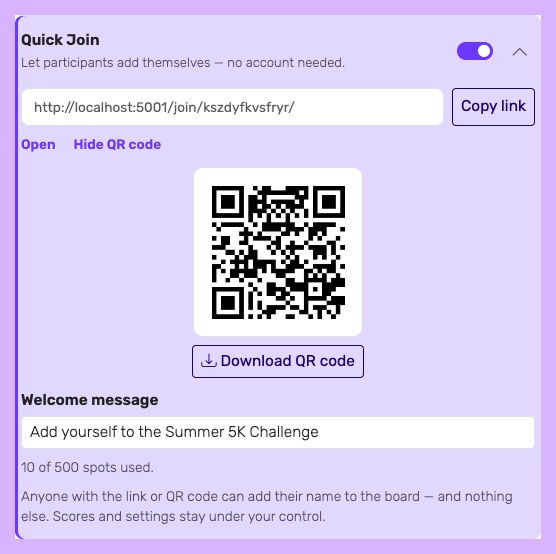
Open your board, click Share, and switch on Quick Join. You can add a short welcome message that participants see on the form — for example, "Add yourself to the Summer Tournament."
3. Show or print the QR code
Display the QR code on a screen at your check-in table, or download it and print it on a sign. You can also copy the join link and share it in a group chat or email.
4. Let participants add themselves
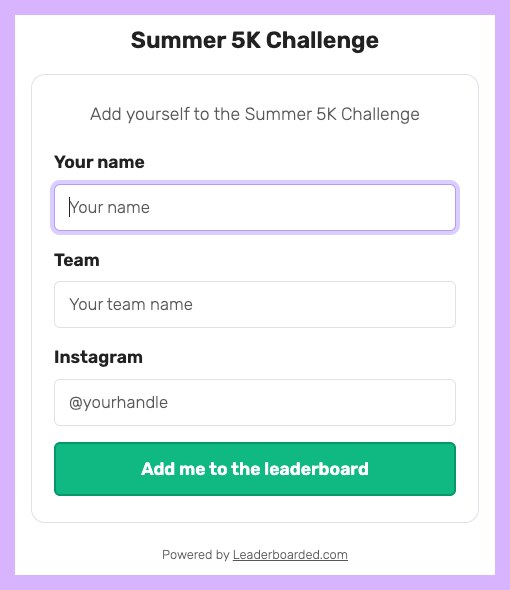
Anyone who scans sees a simple form: their name, plus any extra fields you've chosen (such as a team name). They tap Add me to the leaderboard and their row appears on your board — live, in front of everyone.
That's it. No app, no account, no queue.
Where QR code sign-up works best
Any time people gather and you want them on the board fast:
- Tournaments and leagues. Players register themselves at check-in instead of waiting for you. Works for everything from gaming tournaments to board-game nights and pickleball round robins.
- Trade shows and booths. Turn a booth game into a live competition and capture leads without manual data entry. See our guide to trade show leaderboards.
- Hackathons. Teams scan a code at check-in and add themselves the moment they arrive. More in how to run a hackathon leaderboard.
- Fundraisers and team challenges. Donors or teams join in seconds, so you can focus on the cause. See fundraising leaderboards.
- Escape rooms and attractions. Teams add themselves between sessions without slowing the next group down. See escape room leaderboards.
You stay in control
Letting people add themselves doesn't mean giving up control. With Quick Join:
- Participants can only add their own name. They can't change scores, edit other people, or open your settings.
- You enter and manage every score, exactly as before.
- Any private field you collect (like an email or social handle) is hidden from the public board and only visible to you. See participant data capture for how that works, including CSV export for follow-up.
If you ever want to stop new sign-ups, flip the Quick Join switch off and the join page closes immediately.
Frequently asked questions
Do participants need an account to use a QR code sign-up?
No. That's the main advantage. Participants scan the code, enter a name, and they're on the board — no sign-up, no password, no app.
Can two people sign up from the same phone?
Yes. After someone joins, there's an "Add someone else" link, so a volunteer's phone or a parent adding a few kids works fine.
How many people can join?
That depends on your plan's participant limit, not on Quick Join. For a big event, pick a plan whose limit comfortably covers your expected crowd.
Get started
Quick Join is rolling out gradually — contact us to enable it for your account. For the full walkthrough, see the Quick Join documentation.

Written by Caspar von Wrede
Founder of Leaderboarded. Building tools that help teams track progress and stay motivated.