How to add a live leaderboard to Microsoft SharePoint
Guide to add a live leaderboard to SharePoint using Leaderboarded.com; update scores on Leaderboarded.com for automatic SharePoint sync.
Overview
Three steps to get a live leaderboard on your SharePoint site:
- Add Leaderboarded.com as a trusted site in SharePoint
- Create a leaderboard on Leaderboarded.com
- Add the leaderboard to SharePoint
Prerequisites:
- You need admin access to your SharePoint Site Settings to add Leaderboarded.com as a trusted site. It won't work otherwise.
- You need a Pro plan on Leaderboarded.com (the website widget requires the Pro plan).
Step 1: Add Leaderboarded.com as a trusted site in SharePoint
You'll be adding the leaderboard as an iFrame using SharePoint's "Embed web part" feature. For this to work, Leaderboarded.com needs to be whitelisted.
Site admins can allow embedding from a specific list of sites, or from any site, by changing the HTML Field Security setting.
Click on Settings → Site Settings. If you don't see Site settings, click Site information → View all site settings.

On the Site settings page, under Site Collection Administration, click HTML Field Security.

Add leaderboarded.com to the "Allow iframes from this domain" list.

Click OK.
Step 2: Create a leaderboard and get the embed code
- Create a leaderboard by clicking the button above and go through the wizard.
- Click Share in the toolbar. You'll need to be signed in.
- Expand the Embed on a website section.
- Click COPY TO CLIPBOARD to copy the embed code.
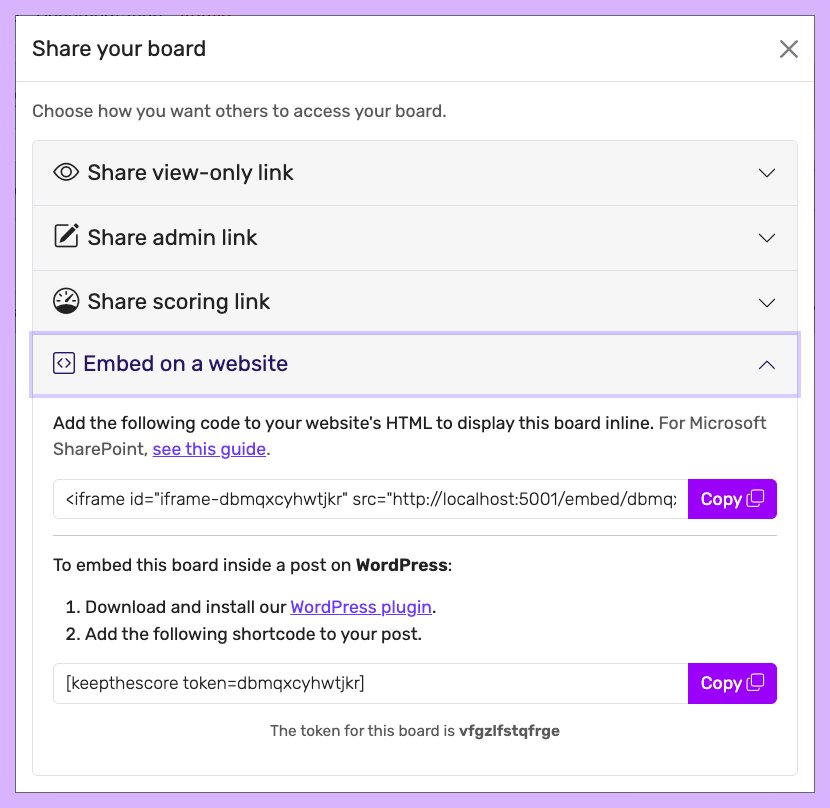
You can customize the leaderboard's colors, text, and themes before embedding. See the theme gallery for options.
Step 3: Add the leaderboard to SharePoint
Make sure your SharePoint page is in Edit mode. If it isn't, click Edit at the top right.
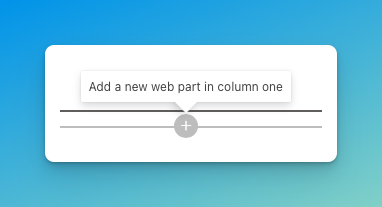
Hover above or below an existing web part (or under the title region) and click the plus sign to add a new web part.
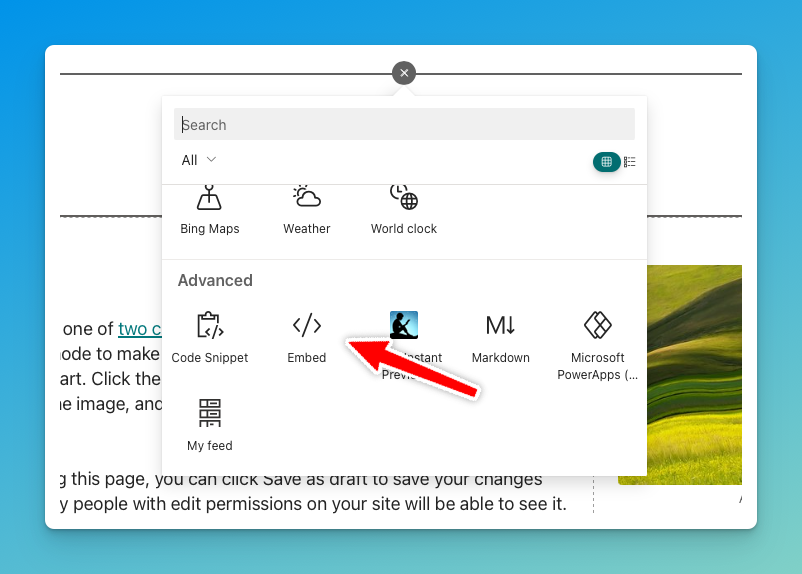
Select the Embed </> web part from the list.
Paste the embed code you copied in step 2.
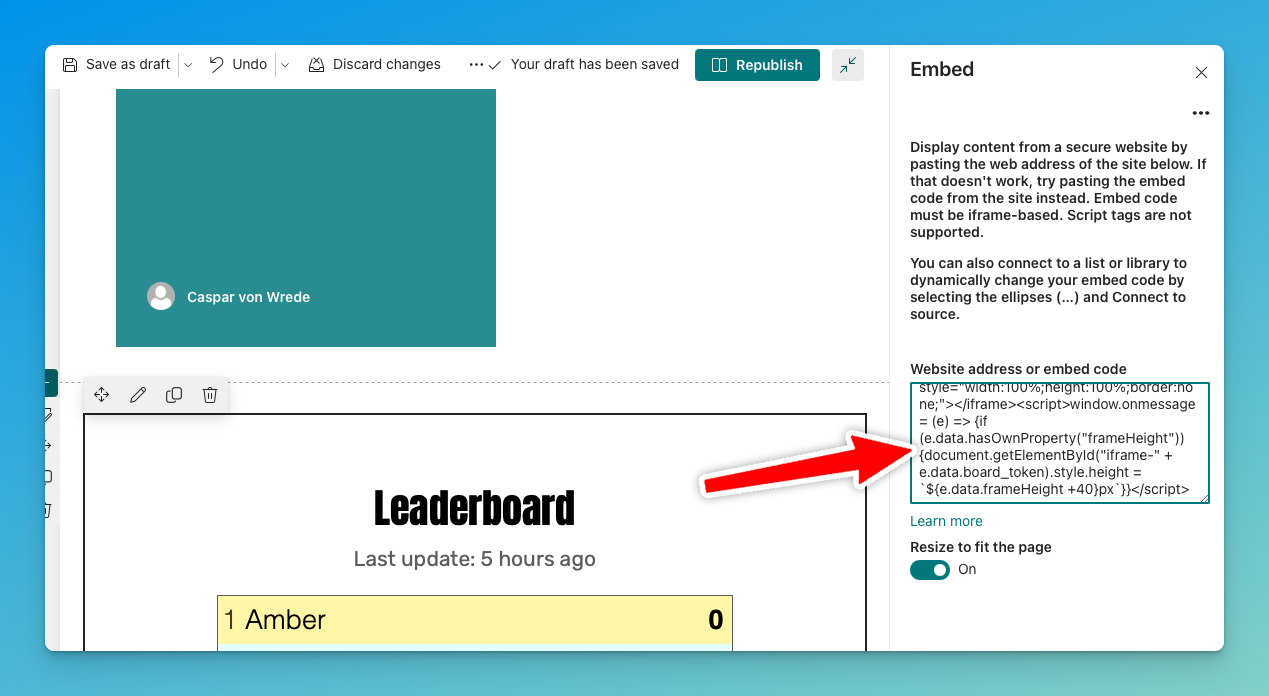
You should see the leaderboard in the preview. If not, double-check that you copied the full embed code. Close the dialog by clicking "X" at the top right.
Click REPUBLISH at the top right. Your leaderboard is now live on SharePoint.
To update it later, make your changes on Leaderboarded.com — they'll sync to SharePoint automatically.